Free original lessons
Browser Window Drawing: Frame, Toolbar, Tab, and Address Bar
Learn to draw a browser window with a clear frame, toolbar, tab, and address bar using a simple grid method and a defined line convention.
Free lesson
Four exercises
Worked answers
Object Drawing Lessons
This lesson teaches a repeatable way to draw a browser window: a rectangular frame, a top toolbar strip, a tab shape, and an address bar. You will use a grid to keep proportions consistent and a simple line convention so your drawing is easy to check. The goal is a recognizable interface sketch, not a pixel-perfect copy. All measurements are hypothetical examples; measure your own paper and tools before drawing.
Practice materials: Printable downloads are not available for this lesson yet. Use the instructions and four exercises below.
Reference illustration
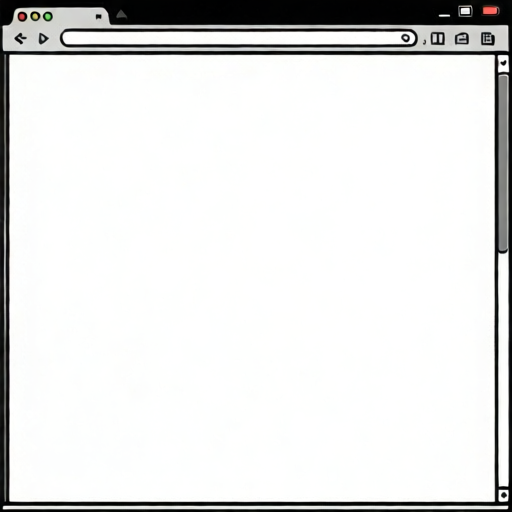
Use the stated measurements and conventions for each exercise.
Set up the grid and frame
Start with a rectangle that represents the window. A grid helps you place the toolbar, tab, and address bar without guessing. Choose a grid unit that fits your paper; for example, a 1 cm square grid on A4 paper is a practical hypothetical choice. Count squares rather than measuring millimeters so the drawing stays proportional.
Draw the outer frame first. Use a solid line for the window border. Keep corners square unless you deliberately choose rounded corners; if you do, note the radius in grid units so the shape is checkable.
- Mark a rectangle 12 grid squares wide and 9 grid squares tall for the window frame.
- Draw the outer border with a solid line, keeping opposite sides parallel.
- Lightly mark a horizontal line 2 squares below the top edge; this separates the toolbar area from the page area.
- Label the frame edges in pencil so you can erase labels later.
Add the toolbar strip and tab
The toolbar is a horizontal strip inside the top of the frame. Define your convention before drawing: for this lesson, place the tab above the toolbar strip, attached to the top edge of the frame, with its left edge 1 square from the frame's left edge. The tab therefore sits outside the 2-square toolbar, so it cannot overlap the address bar inside the toolbar.
Use a dashed line for construction guides and a solid line for final edges. This convention makes it clear which lines are part of the drawing and which are helpers. Letter styles vary, so do not worry about matching a specific font; instead, keep labels short and legible.
- Draw the toolbar strip as a rectangle 12 squares wide and 2 squares tall, directly below the top frame edge.
- Inside the toolbar, draw three small circles 1 square in diameter, spaced 2 squares apart, to represent buttons.
- Draw the tab as a rounded rectangle 4 squares wide and 1.5 squares tall, attached to the top edge of the frame above the toolbar strip.
- Write a short label such as 'Tab' inside the tab using your normal handwriting; keep letters within the tab outline.
Draw the address bar and check proportions
The address bar is a long, narrow rectangle inside the toolbar strip. Place it inside the toolbar, below the tab and above the page area. A hypothetical example is an address bar 8 squares wide and 1 square tall, centered horizontally in the toolbar strip.
Check proportions by counting squares: the frame is 12 by 9, the toolbar is 12 by 2, the tab is 4 by 1.5, and the address bar is 8 by 1. If your counts differ, adjust before inking. Use a simple arithmetic check: total toolbar height plus page area height should equal the frame height.
- Draw the address bar rectangle 8 squares wide and 1 square tall inside the toolbar strip.
- Add a short horizontal line inside the address bar to suggest text, or write a short label such as 'Address'.
- Erase construction guides after the final lines are drawn.
- Verify that the tab, toolbar, and address bar do not overlap unless your convention allows it.
Worked example
Draw a browser window on a 1 cm grid using a 12 by 9 frame, a 12 by 2 toolbar, a 4 by 1.5 tab, and an 8 by 1 address bar. Describe the placement.
Worked answer
The frame is 12 squares wide and 9 tall. The toolbar occupies the top 2 squares inside the frame. The tab is a rounded rectangle 4 squares wide and 1.5 tall attached to the top edge of the frame above the toolbar, starting 1 square from the left frame edge. The address bar is 8 squares wide and 1 tall inside the toolbar, centered horizontally. The remaining 7 squares of frame height form the page area. Check: 2 toolbar + 7 page = 9 frame height. The tab sits above the frame edge, so it does not reduce the toolbar or page height.
Four practice exercises
Exercise 1
Using a 10 by 8 grid frame, place a 10 by 2 toolbar and a 6 by 1 address bar. How many squares remain for the page area?
Show answer and check
6 squares.
Why: Frame height 8 minus toolbar height 2 equals page height 6. The address bar is inside the toolbar, so it does not change page height.
Check: Count frame height squares, subtract toolbar height squares, and confirm the result equals the page area height.
Exercise 2
A tab is 3 squares wide and 1 square tall, placed 1 square from the left frame edge. The frame is 9 squares wide. How many squares from the tab's right edge to the right frame edge?
Show answer and check
5 squares.
Why: Tab starts at 1, ends at 1+3=4. Frame width 9 minus 4 equals 5 squares remaining.
Check: Add left offset, tab width, and remaining width: 1+3+5=9, matching frame width.
Exercise 3
You draw a toolbar 12 squares wide and 3 squares tall inside a 12 by 10 frame. What page height remains, and is the toolbar proportionally taller or shorter than a 2-square toolbar in a 9-square frame?
Show answer and check
Page height is 7 squares. The 3-square toolbar is proportionally taller: 3/10 versus 2/9.
Why: 10-3=7. Compare ratios 3/10=0.30 and 2/9≈0.22; 0.30 is larger.
Check: Compute page height by subtraction and compare fractions with a common denominator or decimal approximation.
Exercise 4
An address bar is 7 squares wide inside a toolbar 10 squares wide. If centered, how many squares are on each side?
Show answer and check
1.5 squares on each side.
Why: 10-7=3 squares total margin; half is 1.5 squares per side.
Check: Add margins and address bar width: 1.5+7+1.5=10, matching toolbar width.
Common mistakes
- Drawing the toolbar taller than the frame allows, so the page area disappears. Count squares before drawing: toolbar height plus page height must equal frame height.
- Placing the tab outside the frame or floating above it without a clear convention. State your convention first, then attach the tab above the toolbar to the top frame edge consistently.
- Using the same line style for construction guides and final edges. Use dashed lines for guides and solid lines for final edges, then erase guides.
- Making the address bar wider than the toolbar strip. Keep the address bar inside the toolbar width; check by counting squares.
Self-check rubric
- Frame is a closed rectangle with opposite sides parallel.
- Toolbar strip is inside the frame and spans the frame width.
- Tab is attached above the toolbar to the top frame edge according to the stated convention.
- Address bar is inside the toolbar and does not exceed toolbar width.
- Construction guides are distinguishable from final edges.
- Labels are legible and inside their shapes.
- Proportions match the chosen grid counts or a clearly stated alternative.
Questions and answers
Do I need a ruler?
A ruler helps keep lines straight, but a grid is the main tool. Measure your own paper and choose a grid unit that fits.
Can I round the corners?
Yes, if you state the radius in grid units and keep it consistent. The rubric allows valid alternatives when the convention is clear.
How do I know my drawing is correct?
Count squares for each part and check that the toolbar, tab, and address bar fit inside the frame without unintended overlap.
What if my handwriting is large?
Keep labels short and inside their shapes. Letter styles vary; legibility matters more than matching a font.