A practical print guide
Print at actual size.
Then measure.
A precisely sized file can still come out too small, too large or unevenly scaled. Use the matching paper, print at 100%, and check a known distance on the sheet before relying on it.
100 mm in both axes + 4 inch bar.
Physical print verification is pending.
Check both directions.
A ruler beats a screen preview.
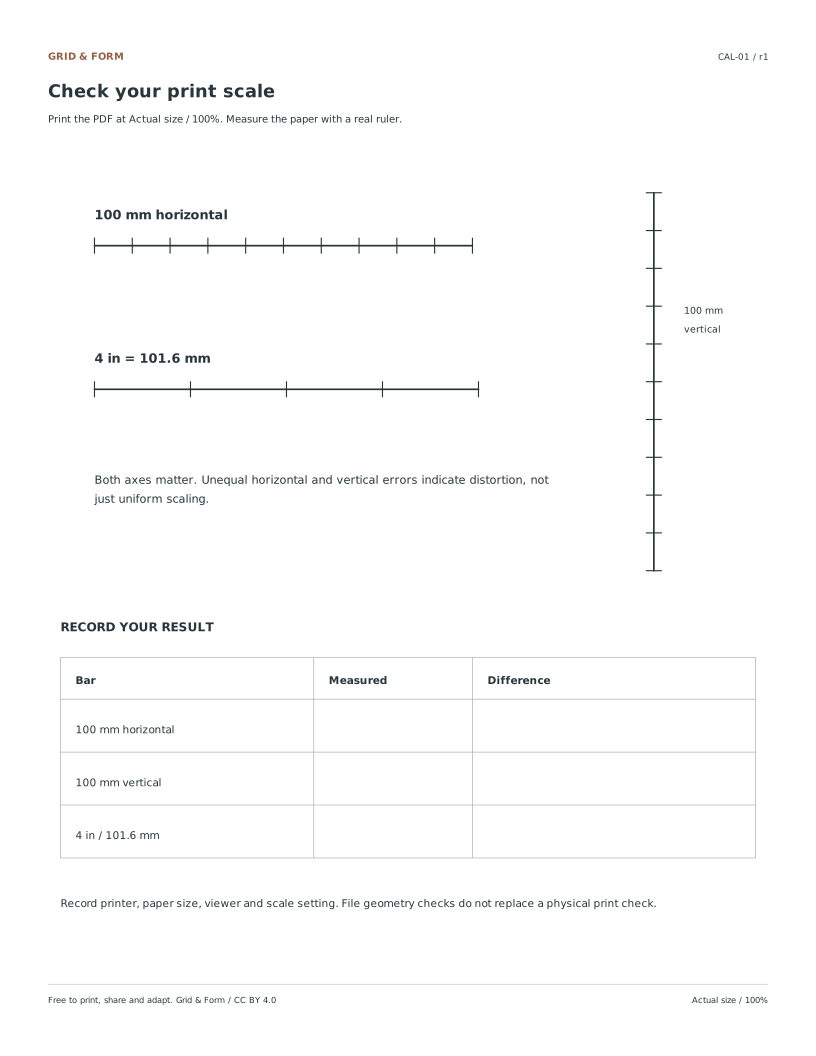
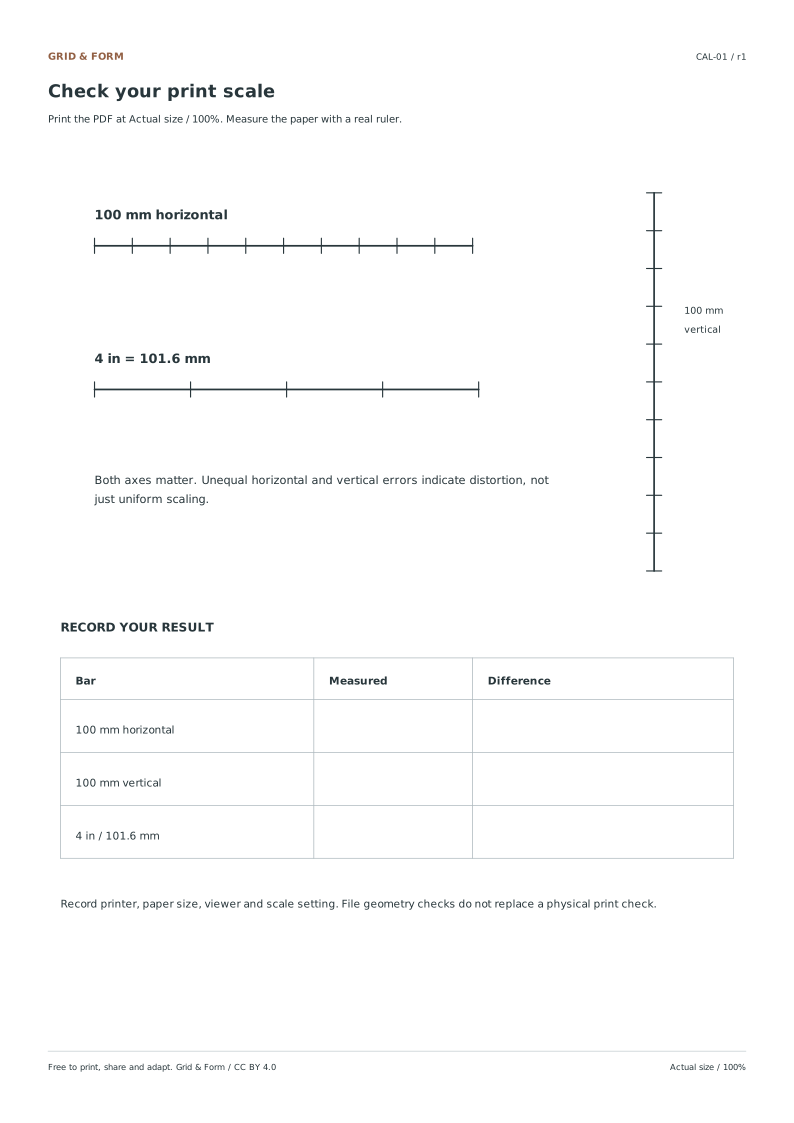
The sheet includes horizontal and vertical 100 mm bars, a horizontal 4 inch / 101.6 mm bar, and a table for your measurements. Measure between the centerlines of the end marks.
All paper sizes & editable formats
- Calibration PDF: US Letter PDF · editable SVG

- Calibration PDF: A4 PDF · editable SVG
Five settings to check before printing.
- Open the downloaded PDF.
Print the resource file rather than this web page. SVGs are editable source files; a browser can fit them to the page differently.
- Match the paper.
Use a Letter PDF with Letter paper, or an A4 PDF with A4 paper. Set portrait orientation and use one PDF page per sheet.
- Choose Actual size or 100%.
Disable Fit, Shrink, booklet, poster and multiple-page layouts. If the viewer uses a custom scale field, enter 100%.
- Avoid borderless expansion.
Some printer drivers enlarge borderless prints beyond the paper edge. Use a normal paper mode for this check and inspect any additional driver scaling setting.
- Print one test sheet first.
Measure the horizontal and vertical bars with a physical ruler. Record the paper, printer, viewer and settings before printing a class set.
What “Fit” changes
Fit-to-page can reduce a large PDF or enlarge a small one to match the selected printable area. A preview that looks neatly centered can therefore still be the wrong scale. A 100% setting is the starting point; a ruler provides the result.
Menu labels vary by viewer and printer driver. Look for the numeric scale as well as a named option, and check that another driver setting is not also resizing the job.
Read the measurement, not just the setting.
Use a practical tolerance.
For these drawing exercises, a suggested check is a 100 mm bar within 0.5 mm of its stated length in both axes. This is this project’s practical target, not an industry standard or a guarantee for every printer.
A 99 mm bar is 1% short. If both axes are similarly short, recheck scaling settings first. If the axes differ, a single percentage adjustment will not correct both directions.
A diagnostic calculation
If 100 mm
prints as 98 mm.
This estimates the inverse of uniform scaling. First remove unintended Fit or driver expansion. If you use a manual compensation, print a new calibration sheet and measure both axes again. Do not assume one correction works for every paper or printer.
If the print still looks wrong.
| What you see | What to check | Next step |
|---|---|---|
| Both bars are uniformly short | Fit, Shrink, wrong paper size or a second driver scale | Set 100%, match the paper and repeat one calibration page. |
| Horizontal and vertical errors differ | Driver distortion, feed behavior or print pipeline | Try another viewer or normal paper mode; measure again. Do not repair only one axis. |
| Outer lines are clipped | Paper mismatch, borderless expansion or printer non-printable area | Use the matching file. If the device needs larger margins, create a deliberately smaller drawing area while preserving spacing. |
| Grid looks too faint | Draft, toner-saving or low-quality print settings | Try normal grayscale quality. Do not enlarge the page to darken it. |
| On-screen ruler disagrees | Browser zoom and image fitting | Measure the printed sheet with a real ruler; do not calibrate from a web screenshot. |
A few useful answers
Before you begin
Is Actual size always enough to guarantee a correct print?
No. It avoids intentional viewer scaling, but paper selection, printer-driver behavior and the physical device can still affect the result. Measure the calibration sheet.
Should I print the SVG or PDF?
Use the PDF for the normal print workflow. The SVG is an editable vector source. If you print an edited SVG, preserve its dimensions and run a new physical scale check.
Can I use a phone to measure the bars?
A camera image can introduce perspective and lens distortion. Use a physical ruler for this check. A screen or camera preview does not establish the printed dimensions.
Have these files been physically print-tested?
Not yet. Zumola records digital geometry checks separately from the uncompleted physical test. Print one calibration sheet and record the result before using the paper for a measured task.
More ways to practice
Turn two measurements into one scale factor
The correction is a ratio, not a guess. Divide the target length by the measured length. If the target is 100 mm and the bar measures 98 mm, the ratio is 100 divided by 98, which is about 1.0204. That means the next print needs to be about 2.04 percent larger than the last one. If the bar measures 102 mm, the ratio is 100 divided by 102, about 0.9804, so the next print needs to be about 1.96 percent smaller.
Keep the units identical on both sides of the division. A 4 inch bar is 101.6 mm, so convert before dividing if your ruler reads in inches. Round the percentage to two decimal places for the calculation, but expect the printed result to land within a practical tolerance rather than exactly on the target. The ratio corrects scale only; it cannot correct a shifted margin, a cropped edge or a bar printed at an angle.
- Measure the printed bar between the centerlines of the end marks and write the number with its unit.
- Divide the target length by the measured length to get the scale factor.
- Subtract 1 and multiply by 100 to express the change as a percentage.
- Apply that percentage to the next print, then measure a fresh bar before trusting the sheet.
Separate uniform scaling from uneven scaling
Compare the horizontal and vertical bars before calculating. If both are short by the same proportion, the page is scaled uniformly and one ratio applies to the whole sheet. If the horizontal bar is close to target while the vertical bar is short, the sheet is being stretched in one direction, and a single scale factor will not fix it. Check paper size and orientation first, because a Letter file printed on A4 paper, or a portrait file forced into landscape, can distort one axis.
A small difference between the two directions can come from measurement rather than the printer. Measure each bar twice, at the centerline of each end mark, and note whether the ruler is parallel to the bar. If the two directions disagree by more than a millimetre or two, treat the print as uneven and correct the setup rather than the scale.
- Measure the horizontal 100 mm bar and the vertical 100 mm bar separately.
- Compare each result with 100 mm and note the direction of any error.
- If both errors match in proportion, calculate one scale factor.
- If the errors differ, recheck paper size, orientation and whether the file was fitted to the page.
A second print confirms the correction
After applying the ratio, print one sheet and measure again. A corrected bar that lands within about a millimetre of 100 mm is usually good enough for craft layouts, labels and simple templates. If it is still off, repeat the ratio using the new measurement rather than stacking percentages from memory. Two rounds of correction are normally enough; a third round that keeps drifting points to a setup problem, such as the wrong paper size or a file that is not the one you think it is.
Record the target, the measured length and the applied percentage on the sheet itself. That note makes the next print repeatable and shows whether the error is consistent across jobs. Do not describe a print as verified unless you have physically measured it; a screen preview cannot confirm actual size.
- Print one sheet with the calculated percentage applied.
- Measure the same bar in the same way as before.
- If it is within about 1 mm of target, keep that setting for similar jobs.
- If not, recalculate from the new measurement and check the setup before printing again.
Try this example
A sheet printed at 100% shows a horizontal 100 mm bar measuring 96 mm and a vertical 100 mm bar measuring 96 mm. What scale should the next print use?
Show the worked explanation
Both directions are short by the same 4 mm, so the scaling is uniform. Divide the target by the measured length: 100 divided by 96 equals about 1.0417. The next print should be about 4.17 percent larger. After printing, measure the bar again; if it reads 99 mm, the remaining error is about 1 percent, which is within a practical tolerance for most craft layouts.
Common mistakes
- Dividing the measured length by the target instead of the target by the measured length. Use target divided by measured; a 98 mm bar against a 100 mm target gives about 1.0204, a 2.04 percent increase.
- Applying one scale factor when the horizontal and vertical bars are off by different amounts. Treat differing errors as uneven scaling and check paper size, orientation and fit-to-page settings before changing scale.
- Stacking several percentage corrections without remeasuring. Measure after each print and recalculate from the latest measurement so errors do not compound.
Check your work
- The scale factor is calculated as target divided by measured, with units kept consistent.
- Horizontal and vertical bars are compared before a single factor is applied.
- The corrected print is measured again rather than assumed correct.
- Any remaining error is described against a stated practical tolerance.
- No print is described as verified without a physical measurement.
Questions before you start
What percentage should I use if a 100 mm bar prints at 95 mm?
Divide 100 by 95 to get about 1.0526, so the next print should be about 5.26 percent larger. Measure again after printing.
Can I correct a bar that printed at an angle?
No. An angled bar gives a longer measurement than the true length, so straighten the sheet or reprint before calculating scale.
How close is close enough after correction?
For most craft and template work, landing within about 1 mm of the 100 mm target is a practical result. Measure physically rather than relying on the preview.