Free original lessons
PowerPoint Index Card Template
This pack teaches you to build an editable PowerPoint slide sized like a 3×5-inch index card, with a title text box and a body text box. A landscape card is 5 inches wide by 3 inches high; portrait is 3 inches wide by 5 inches high. Set and verify those dimensions in PowerPoint’s slide-size dialog. Screen zoom changes only the on-screen view; it does not verify physical inches.
Letter & A4
PDF & SVG
What the task is
The task is to create an editable PowerPoint slide template sized as a 3x5 index card with text boxes. The slide is the card: its page size is set to the card size, and the text boxes are placed inside that page.
A 3x5 index card is 3 inches by 5 inches. In PowerPoint you choose the orientation: a landscape card is 5 inches wide and 3 inches tall; a portrait card is 3 inches wide and 5 inches tall. This pack uses landscape as the worked choice. Task 1 is the fixed portrait exercise; Tasks 2–4 are the fixed landscape exercises described in their prompts.
Reference and construction
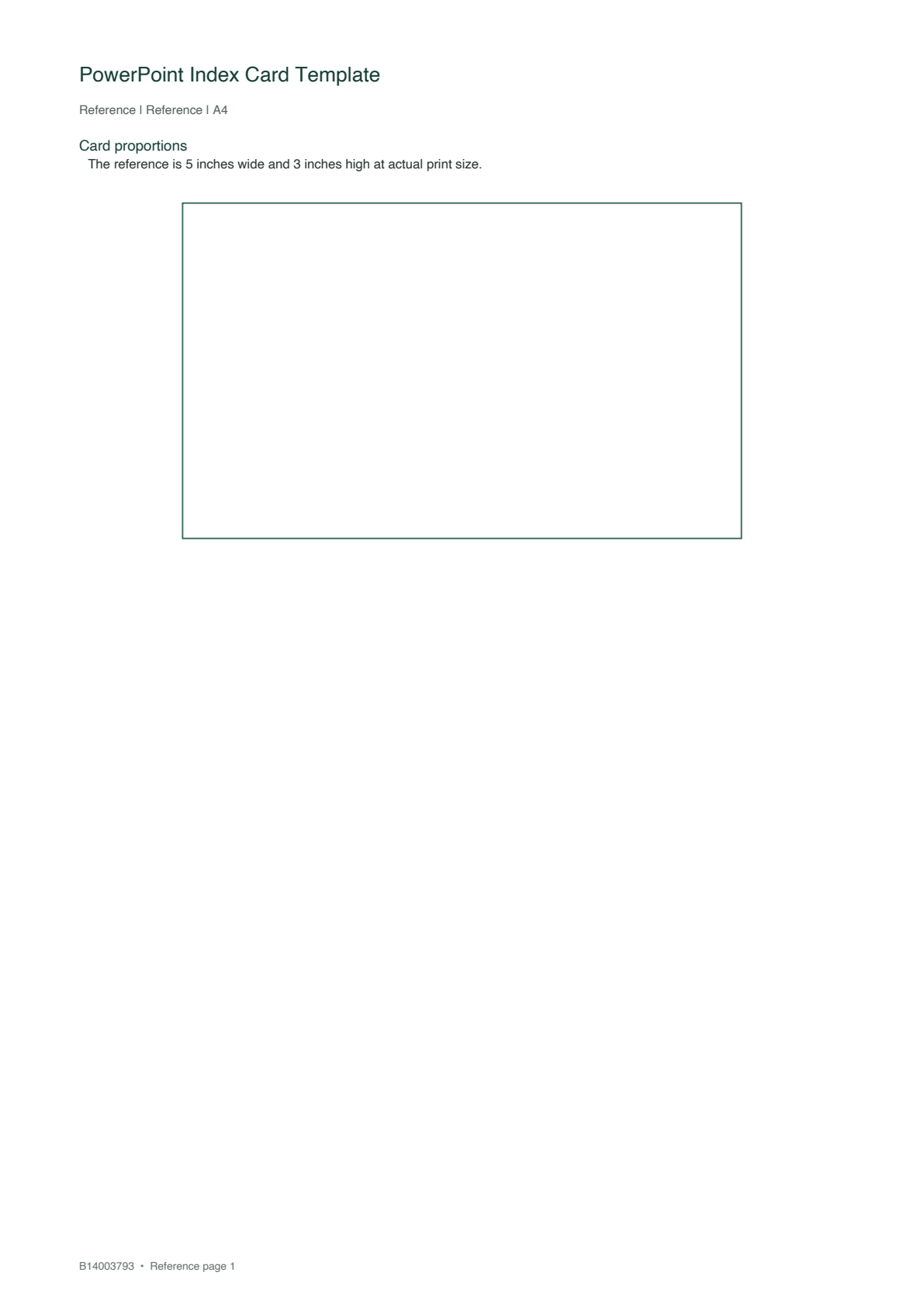
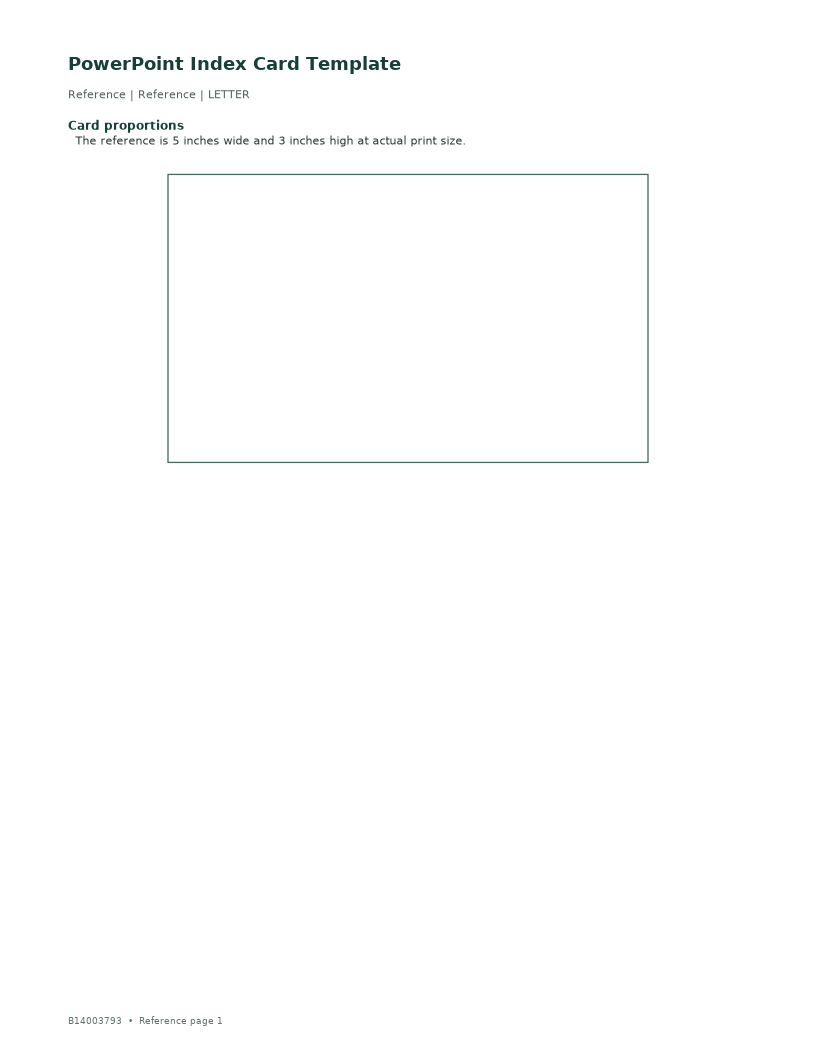
Use a real 3x5 index card as your physical reference, or a clear picture of one, to confirm the card's shape and proportions. The card is a rectangle with a 5:3 long-side to short-side relationship; you do not need to measure it beyond confirming it is a 3x5 card.
In current PowerPoint for Windows, open a blank presentation, then choose Design > Slide Size > Custom Slide Size. On PowerPoint for Mac, choose File > Page Setup; under Size select Custom. In the dialog, enter the width and height: 5 inches by 3 inches for landscape, or 3 inches by 5 inches for portrait. Choose the matching orientation and apply the size to the whole presentation if prompted.
Adding the text boxes
On the sized slide, insert a title text box near the top and a body text box below it. Keep both boxes inside the card edges with a small margin so text does not touch the edge.
Use Insert > Text Box, click and drag to draw the box, then type a short title and a short body line. Set the title in a larger size than the body so the two boxes read as a heading and content. Keep the boxes editable: do not convert text to an image.
Checking the result
Check the slide dimensions in the Slide Size dialog on Windows or File > Page Setup on Mac. Confirm the width, height and orientation match the chosen card. Check that both text boxes are inside the card edges and that each remains editable by clicking into it.
Screen zoom changes how large the slide appears on your monitor; 100% zoom is not a ruler and does not confirm physical inches. Verify the dimensions in the slide-size dialog. If you need a physical card, print at actual size with page fitting disabled and measure the paper output.
Download the complete resource pack
All individual SVG pages (20)
- A4 reference page 1
- A4 reference page 2
- A4 student page 1
- A4 student page 2
- A4 student page 3
- A4 student page 4
- A4 answer page 1
- A4 answer page 2
- A4 answer page 3
- A4 answer page 4
- LETTER reference page 1
- LETTER reference page 2
- LETTER student page 1
- LETTER student page 2
- LETTER student page 3
- LETTER student page 4
- LETTER answer page 1
- LETTER answer page 2
- LETTER answer page 3
- LETTER answer page 4
Print at 100% / actual size. Use the stated scale on any schematic diagram; physical cutting templates are identified separately. A4 and US Letter are separate files. Free access, no signup; CC BY 4.0.
How to use these pages
- What the task is
- Reference and construction
- Adding the text boxes
- Checking the result
Worked example
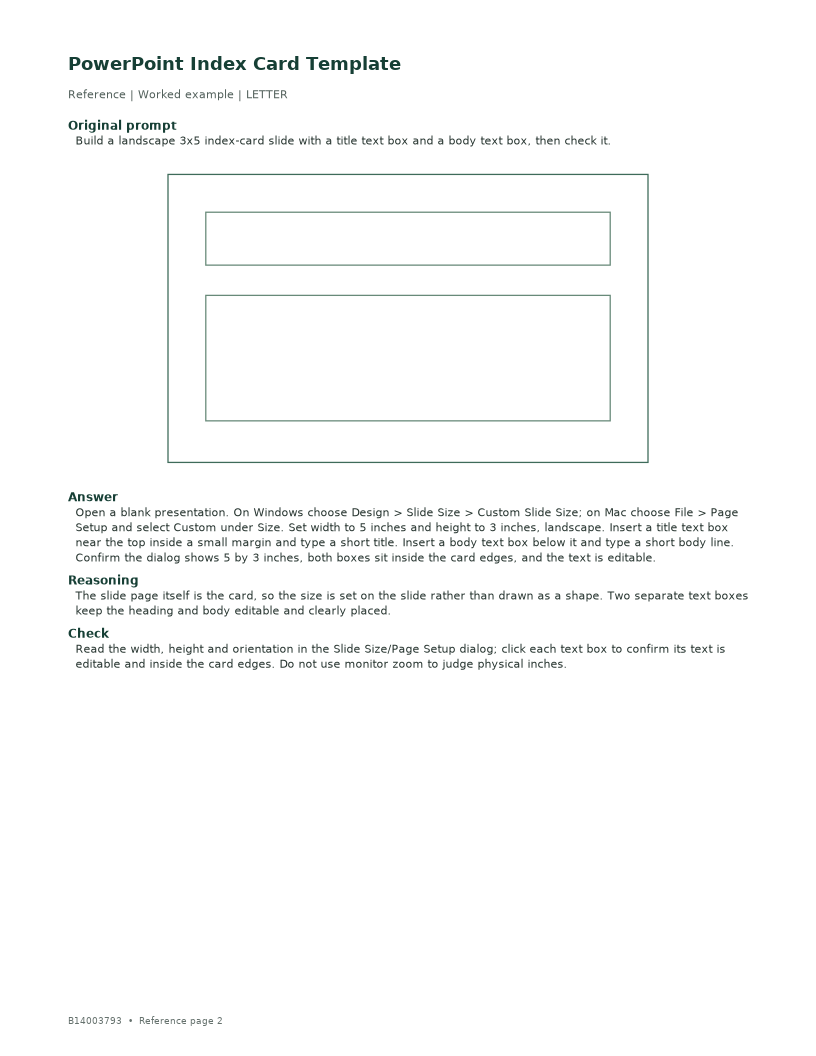
Example: Build a landscape 3x5 index-card slide with a title text box and a body text box, then check it.
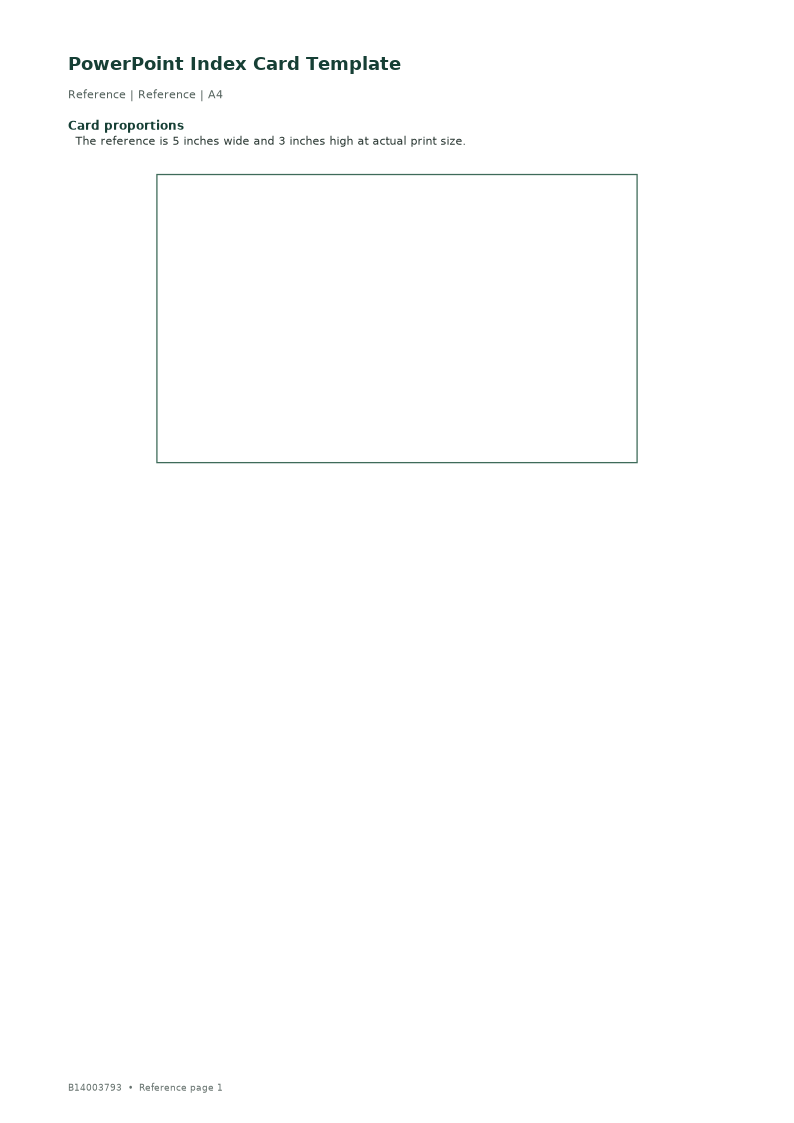
Answer: Open a blank presentation. On Windows choose Design > Slide Size > Custom Slide Size; on Mac choose File > Page Setup and select Custom under Size. Set width to 5 inches and height to 3 inches, landscape. Insert a title text box near the top inside a small margin and type a short title. Insert a body text box below it and type a short body line. Confirm the dialog shows 5 by 3 inches, both boxes sit inside the card edges, and the text is editable.
Reasoning: The slide page itself is the card, so the size is set on the slide rather than drawn as a shape. Two separate text boxes keep the heading and body editable and clearly placed.
Check: Read the width, height and orientation in the Slide Size/Page Setup dialog; click each text box to confirm its text is editable and inside the card edges. Do not use monitor zoom to judge physical inches.
Four practice tasks and complete answers
Task 1
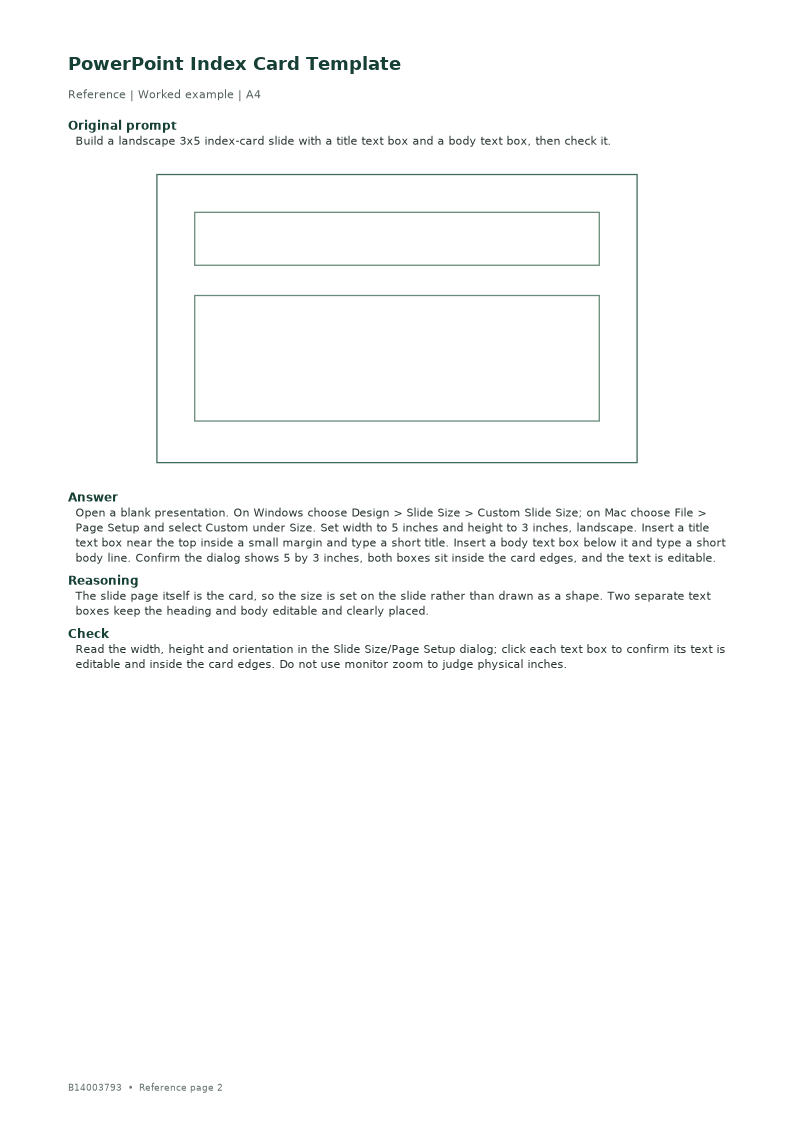
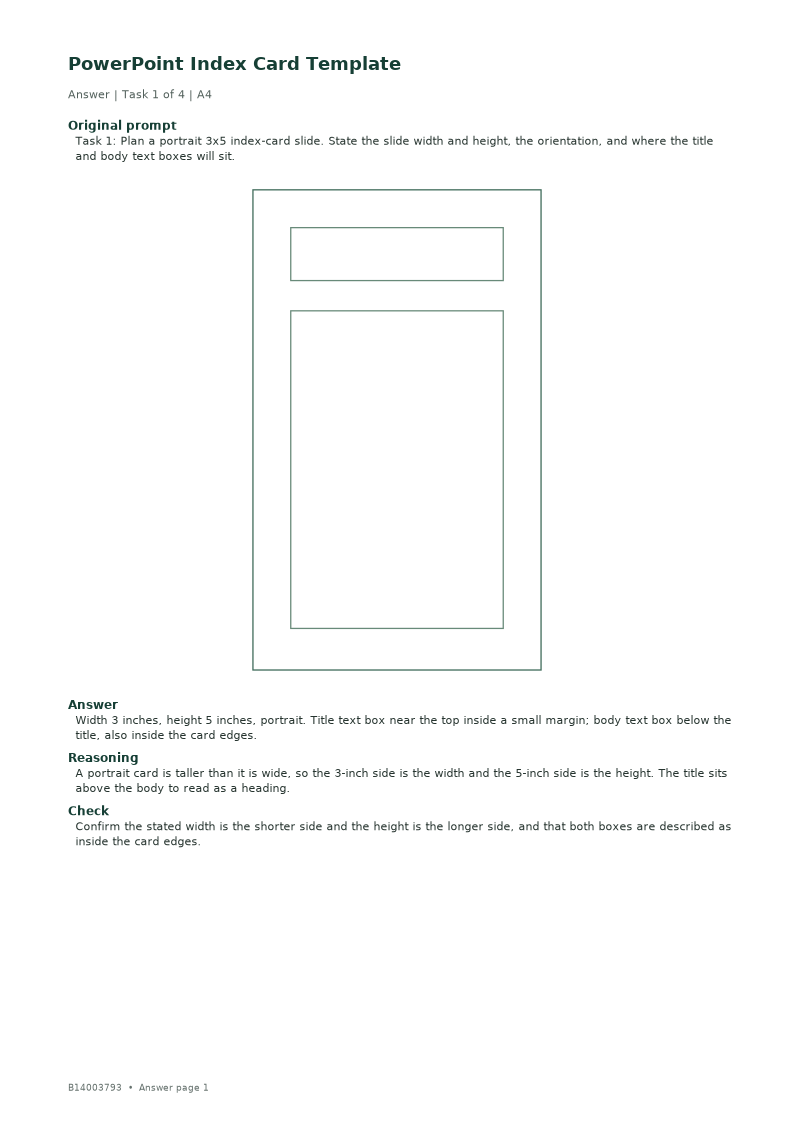
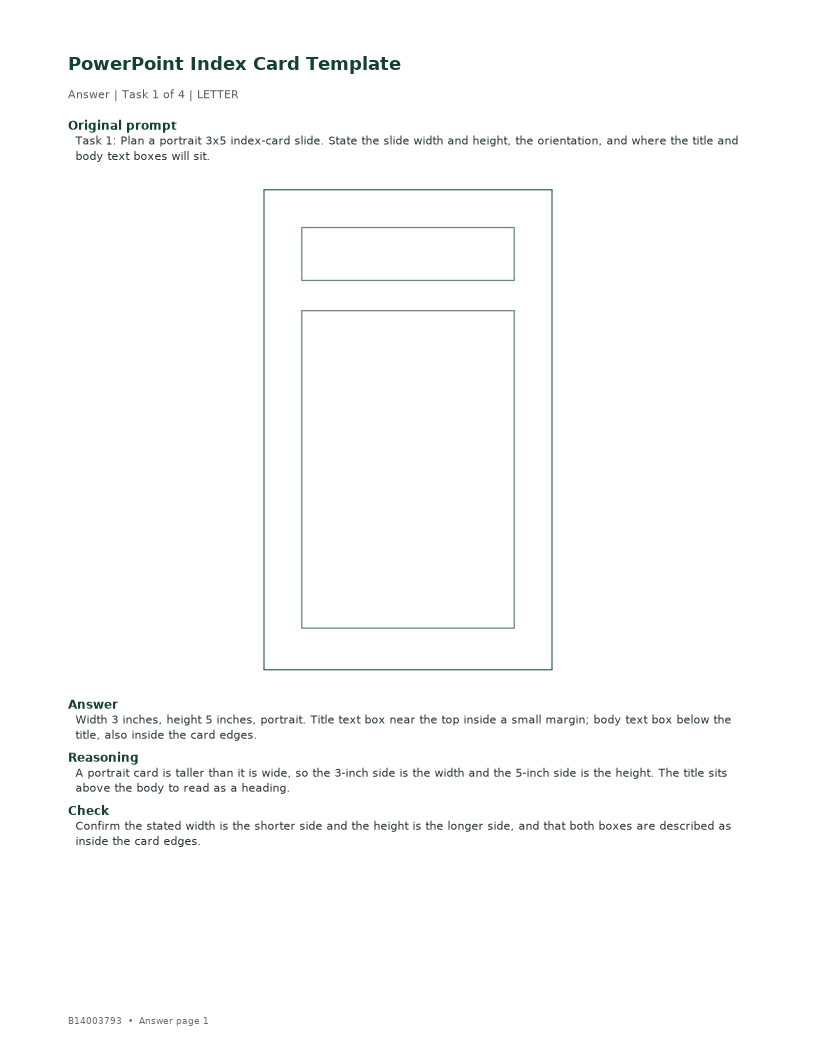
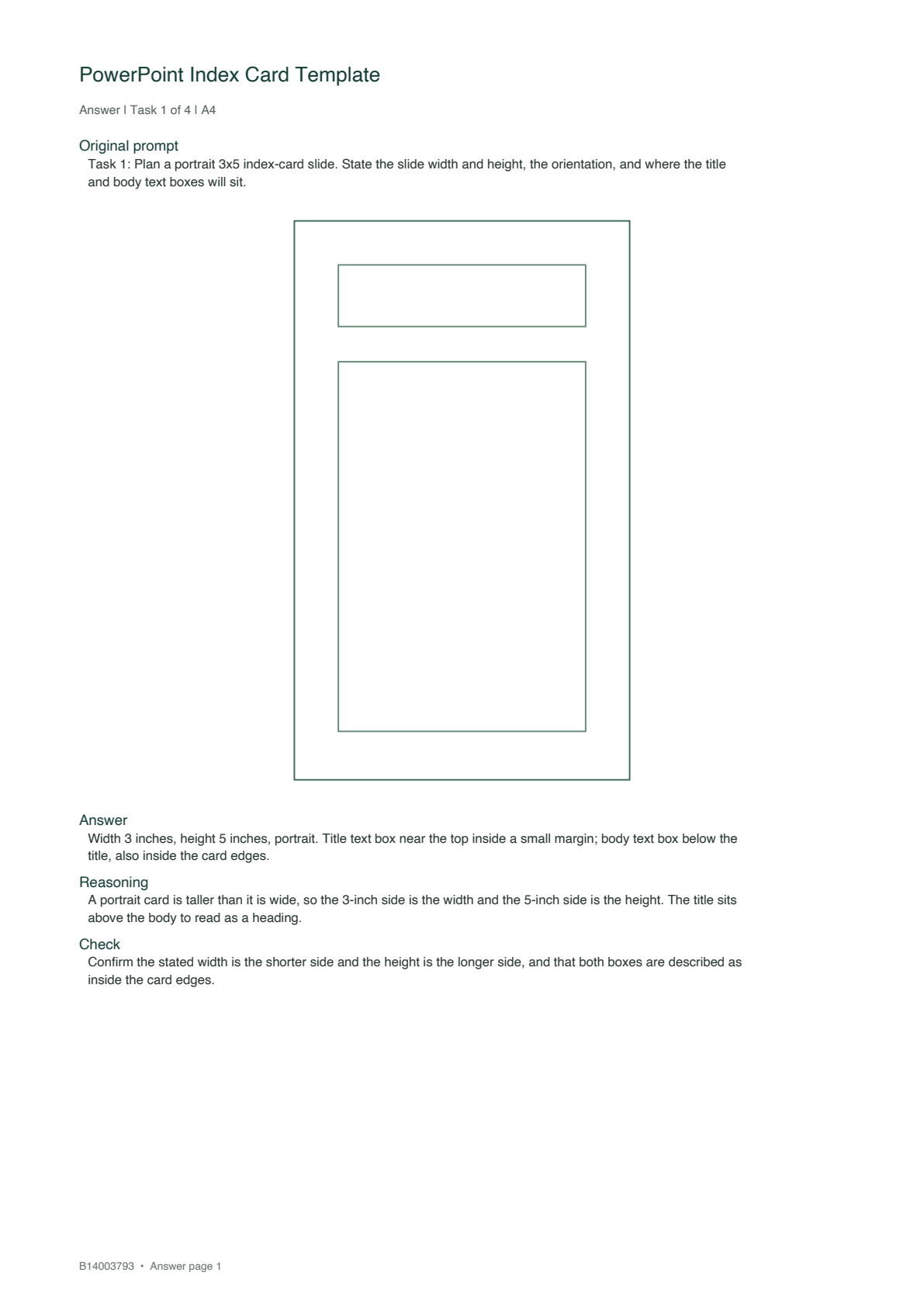
Task 1: Plan a portrait 3x5 index-card slide. State the slide width and height, the orientation, and where the title and body text boxes will sit.
Show answer 1
Width 3 inches, height 5 inches, portrait. Title text box near the top inside a small margin; body text box below the title, also inside the card edges.
A portrait card is taller than it is wide, so the 3-inch side is the width and the 5-inch side is the height. The title sits above the body to read as a heading.
Check: Confirm the stated width is the shorter side and the height is the longer side, and that both boxes are described as inside the card edges.
Task 2
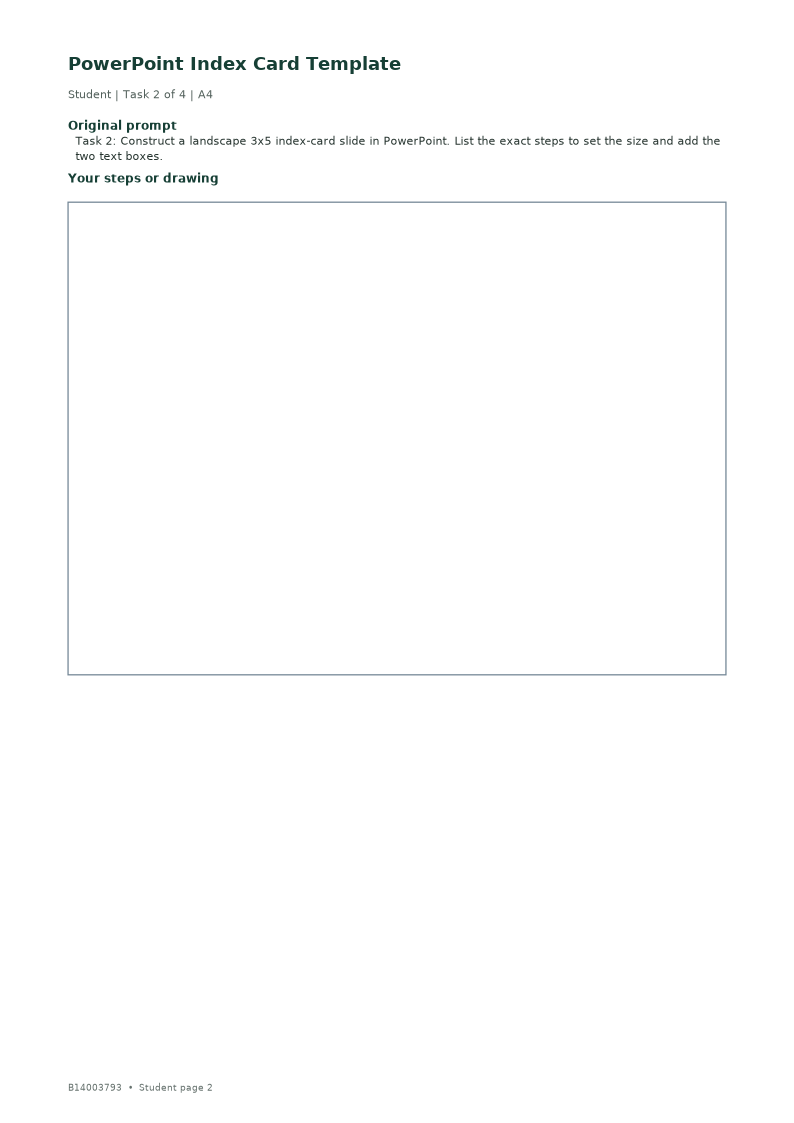
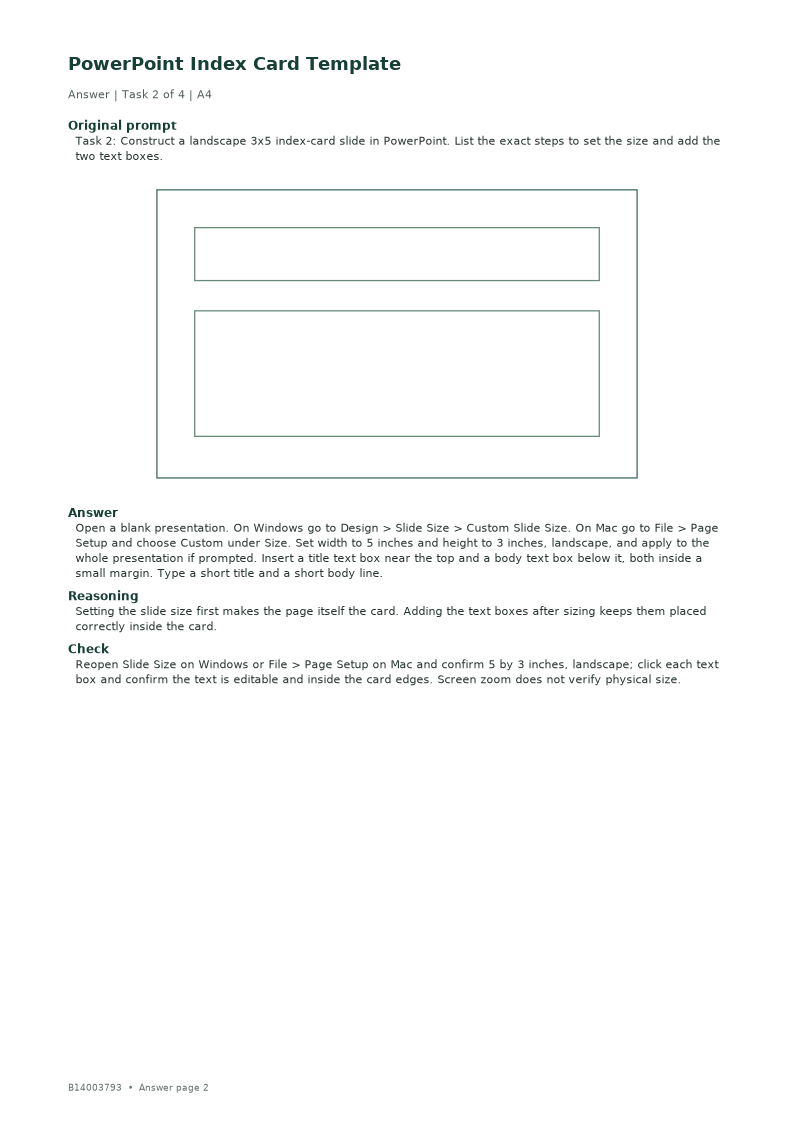
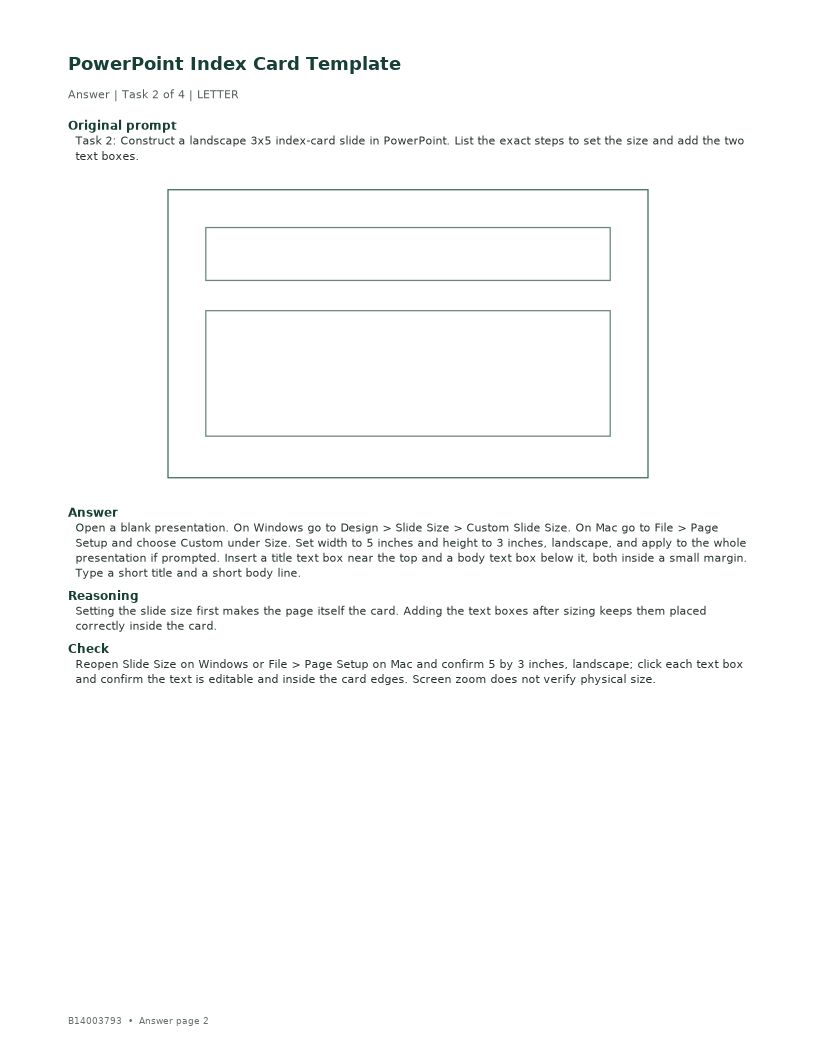
Task 2: Construct a landscape 3x5 index-card slide in PowerPoint. List the exact steps to set the size and add the two text boxes.
Show answer 2
Open a blank presentation. On Windows go to Design > Slide Size > Custom Slide Size. On Mac go to File > Page Setup and choose Custom under Size. Set width to 5 inches and height to 3 inches, landscape, and apply to the whole presentation if prompted. Insert a title text box near the top and a body text box below it, both inside a small margin. Type a short title and a short body line.
Setting the slide size first makes the page itself the card. Adding the text boxes after sizing keeps them placed correctly inside the card.
Check: Reopen Slide Size on Windows or File > Page Setup on Mac and confirm 5 by 3 inches, landscape; click each text box and confirm the text is editable and inside the card edges. Screen zoom does not verify physical size.
Task 3
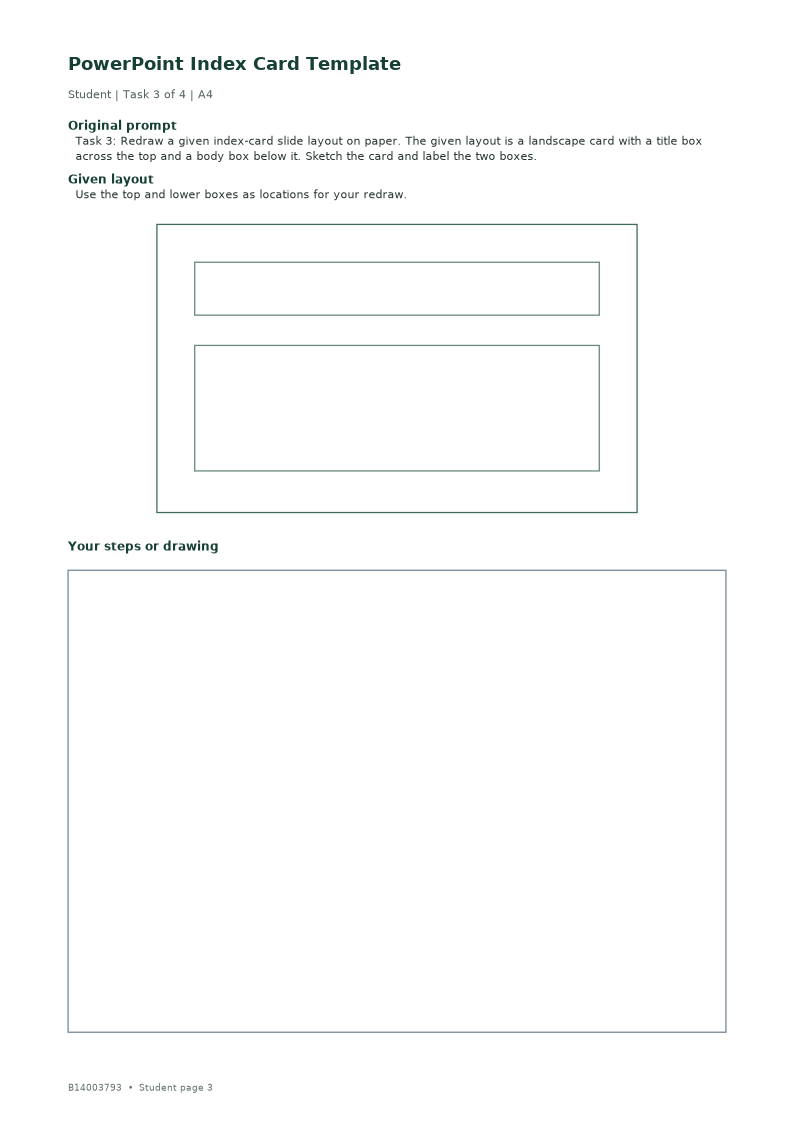
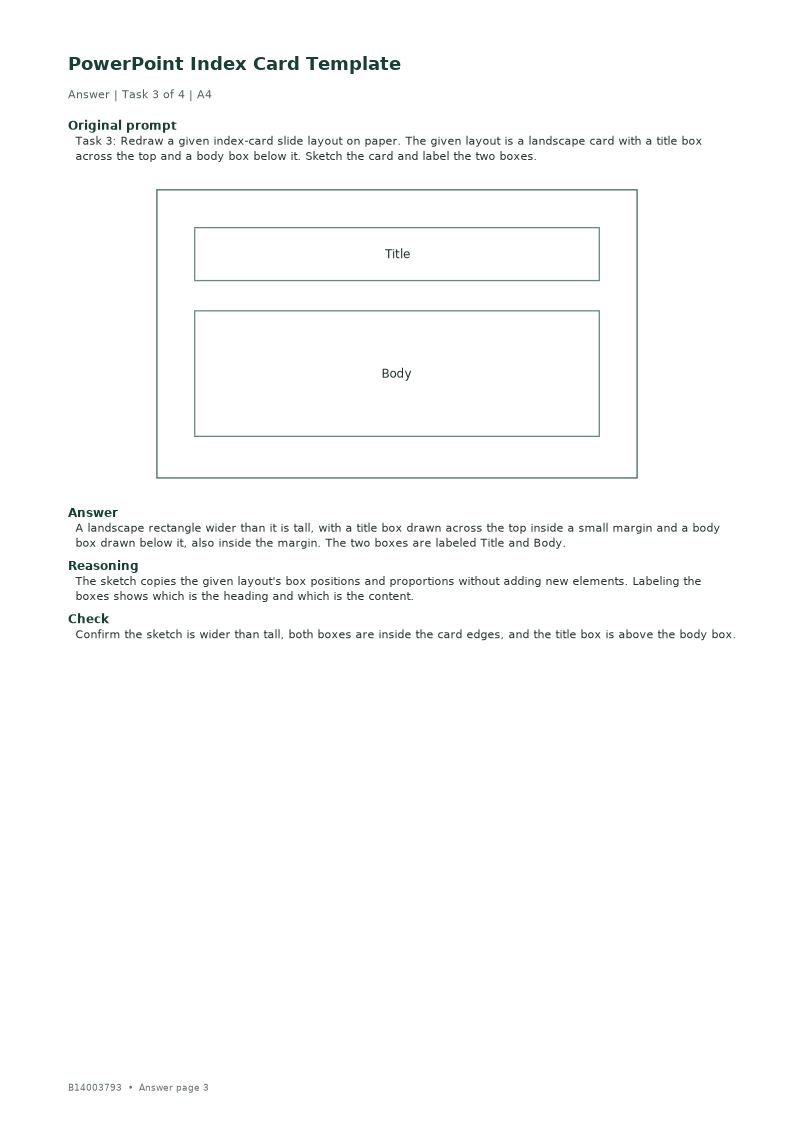
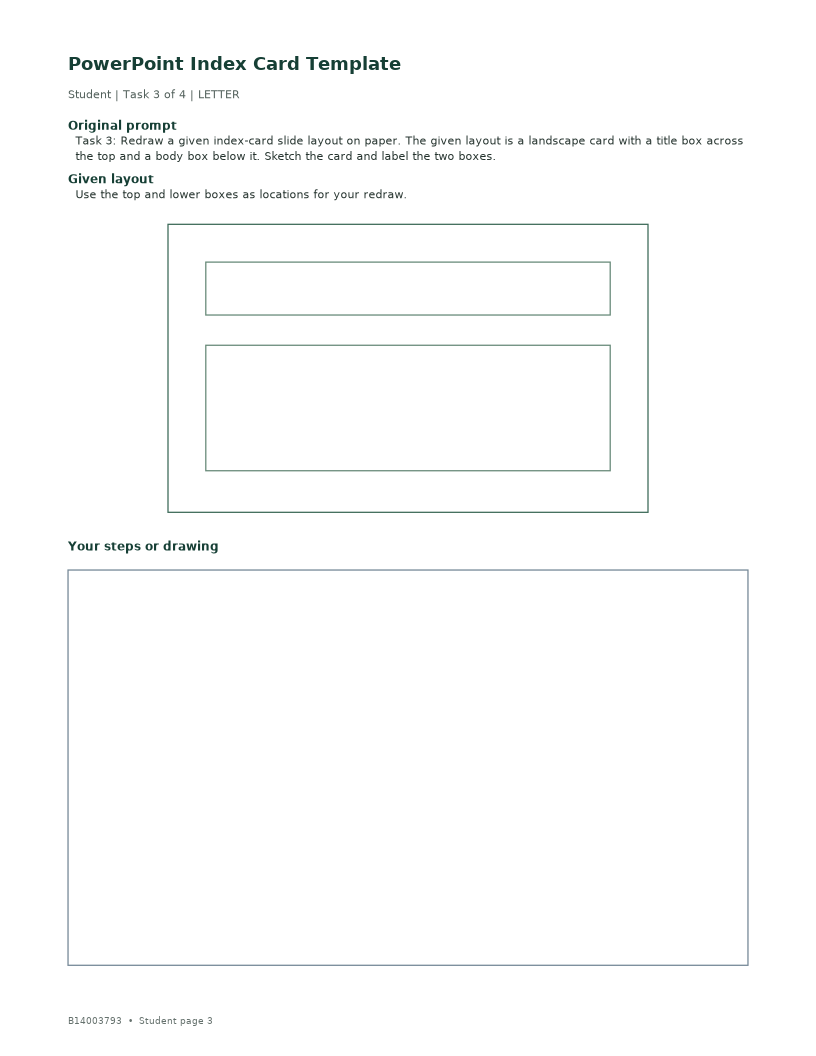
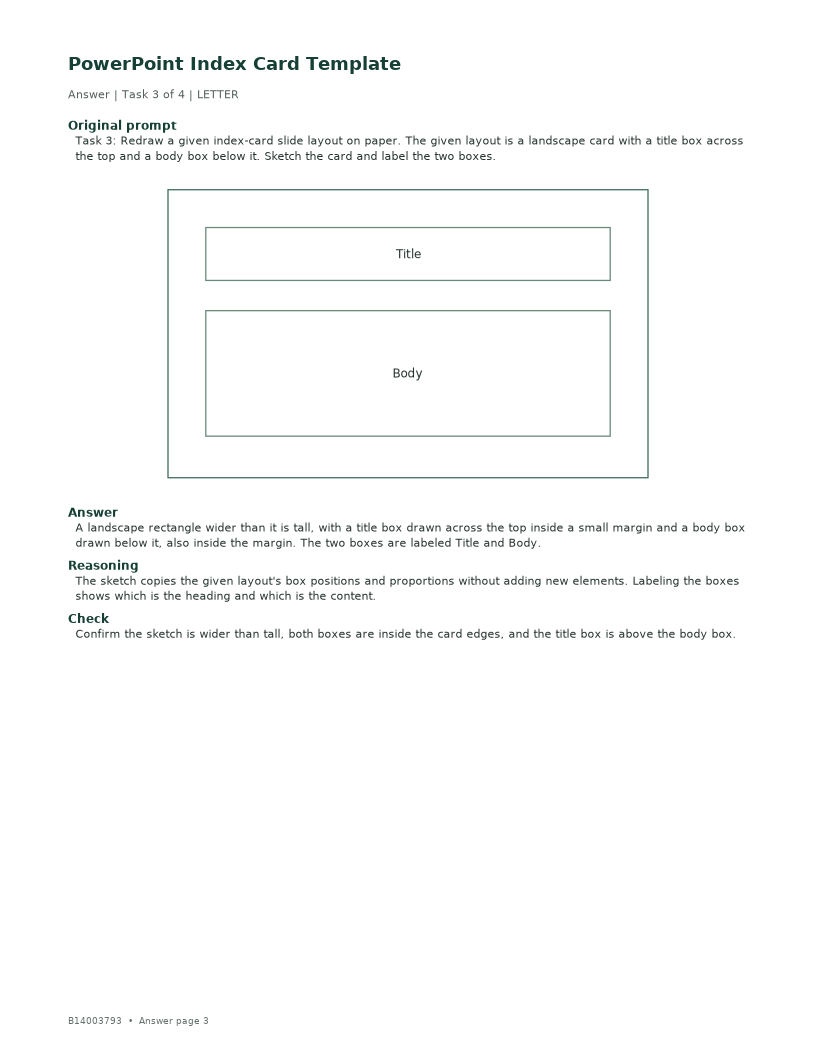
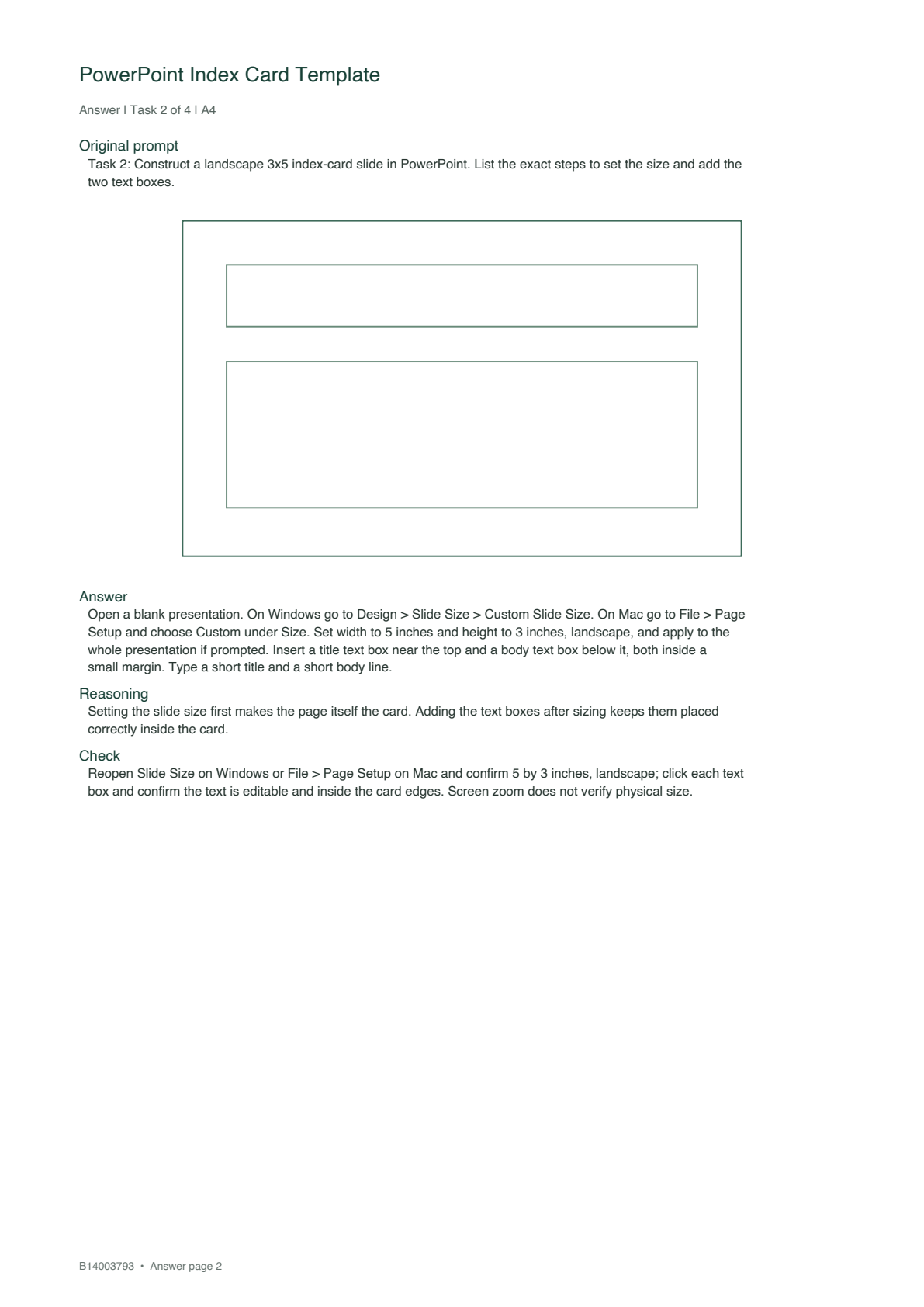
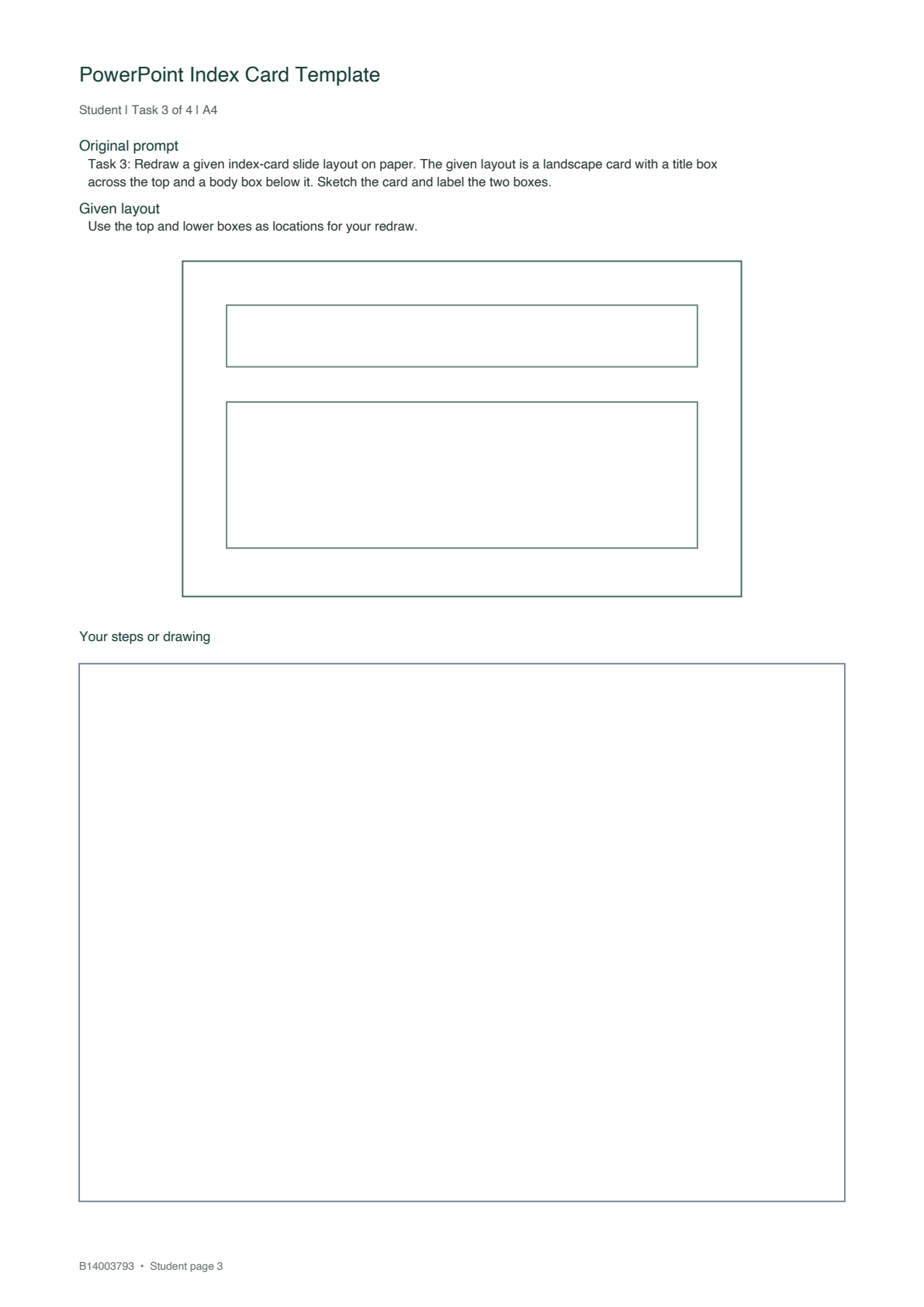
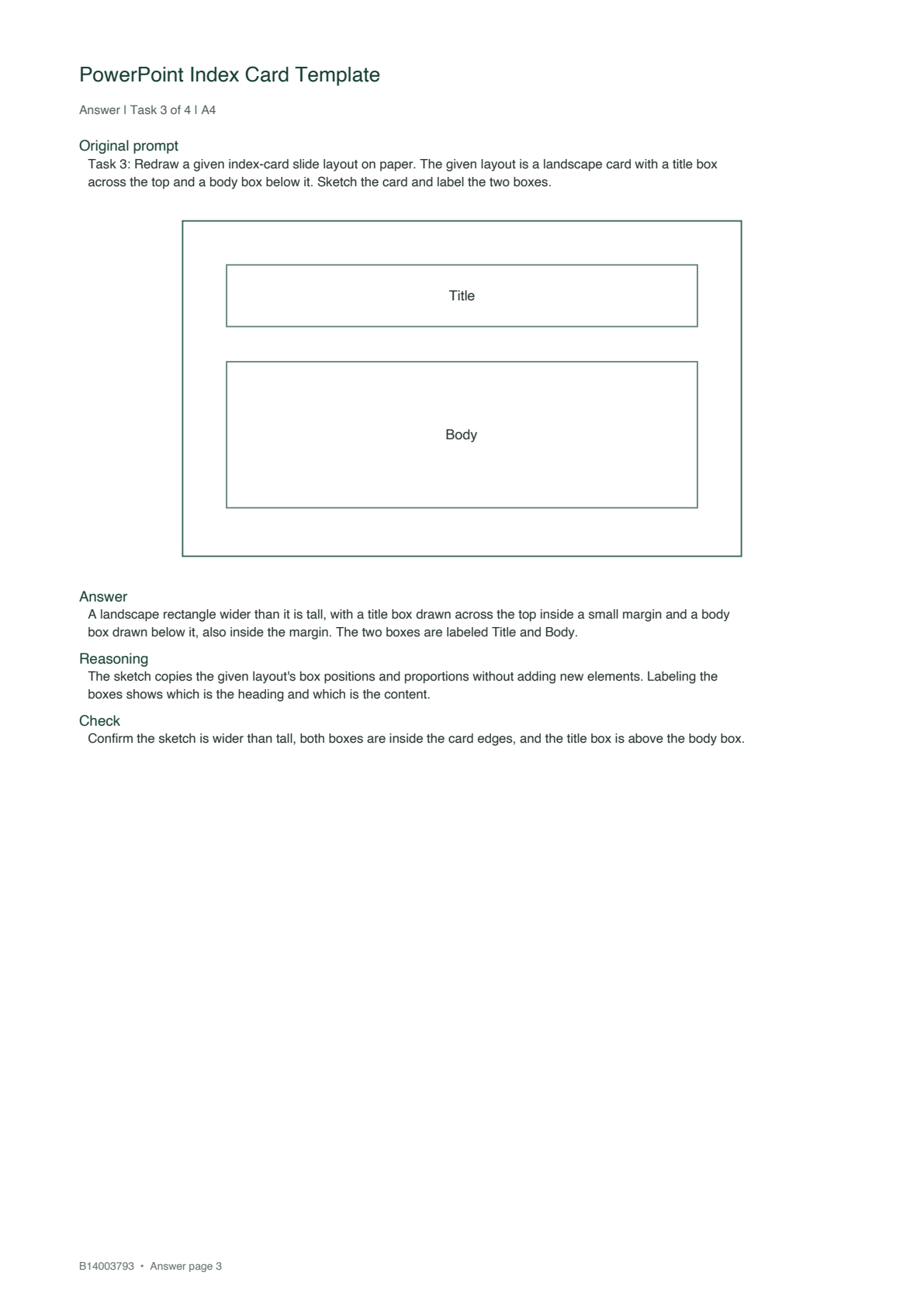
Task 3: Redraw a given index-card slide layout on paper. The given layout is a landscape card with a title box across the top and a body box below it. Sketch the card and label the two boxes.
Show answer 3
A landscape rectangle wider than it is tall, with a title box drawn across the top inside a small margin and a body box drawn below it, also inside the margin. The two boxes are labeled Title and Body.
The sketch copies the given layout's box positions and proportions without adding new elements. Labeling the boxes shows which is the heading and which is the content.
Check: Confirm the sketch is wider than tall, both boxes are inside the card edges, and the title box is above the body box.
Task 4
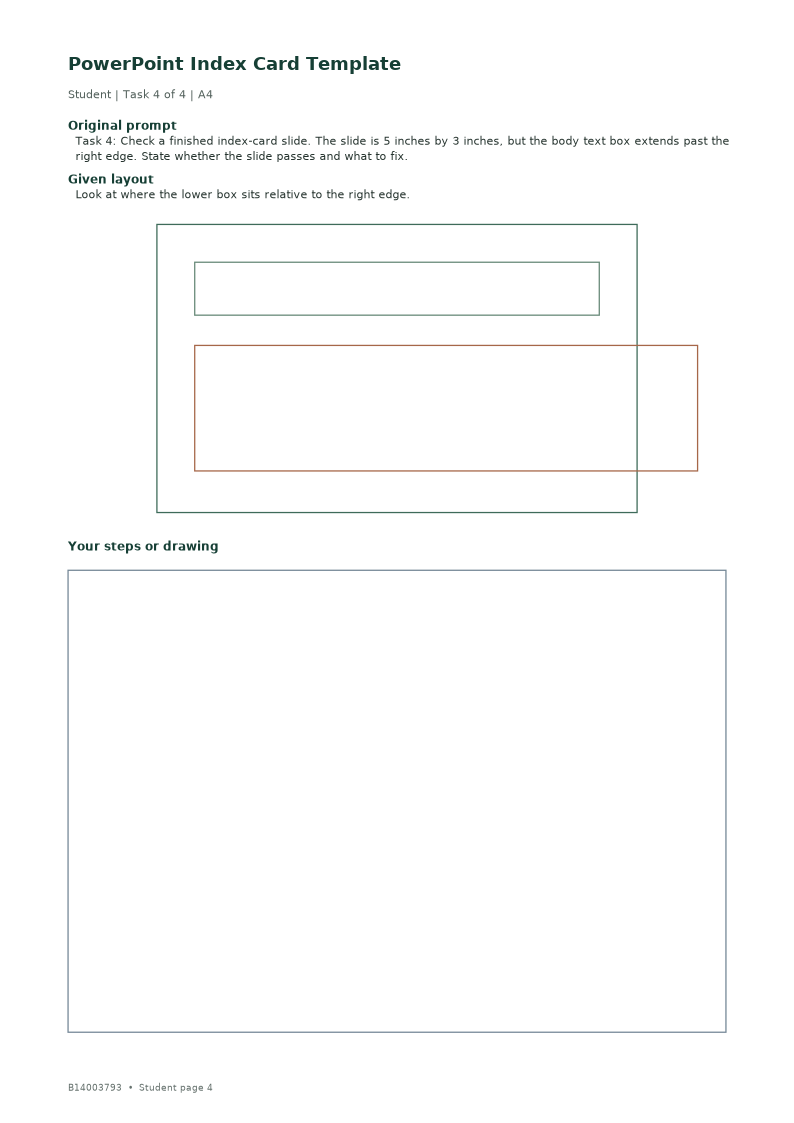
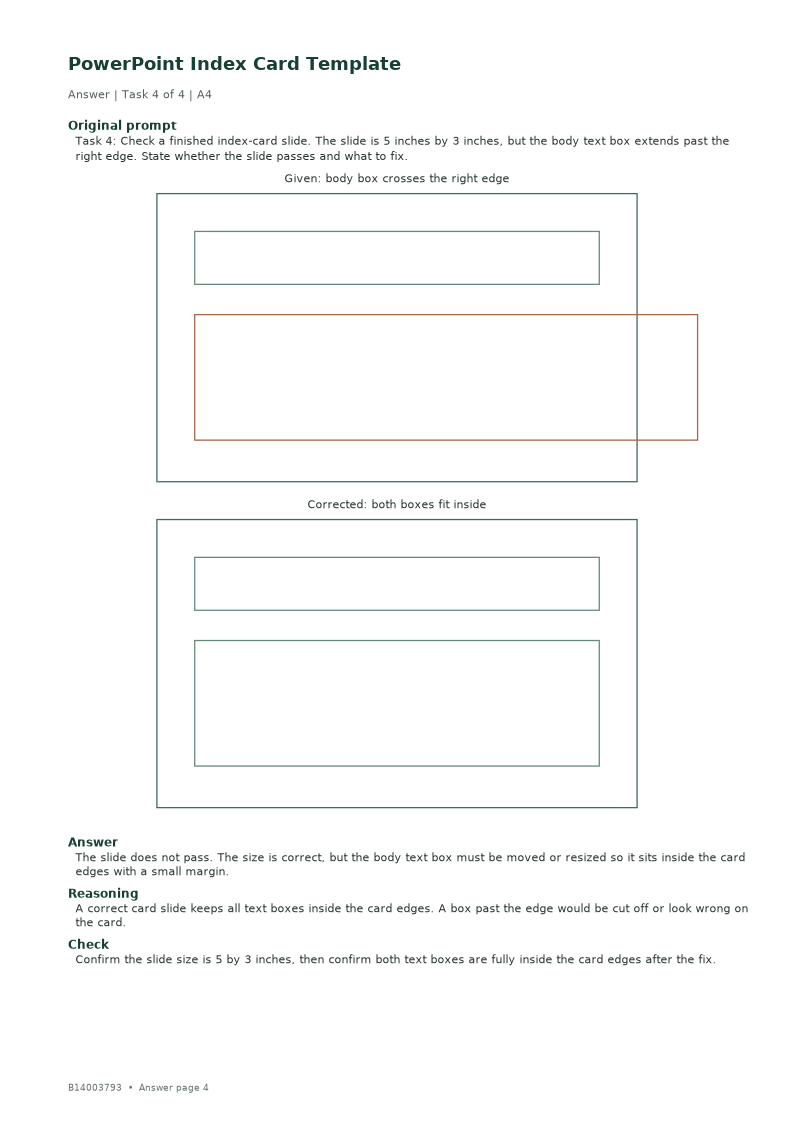
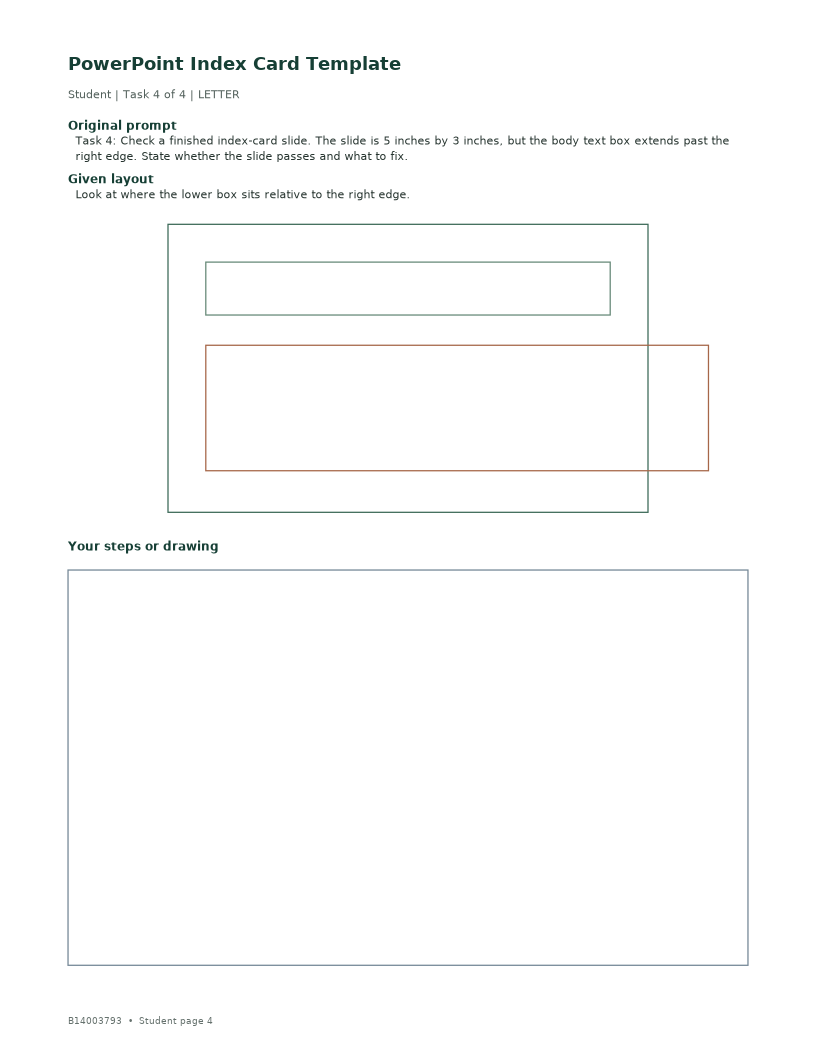
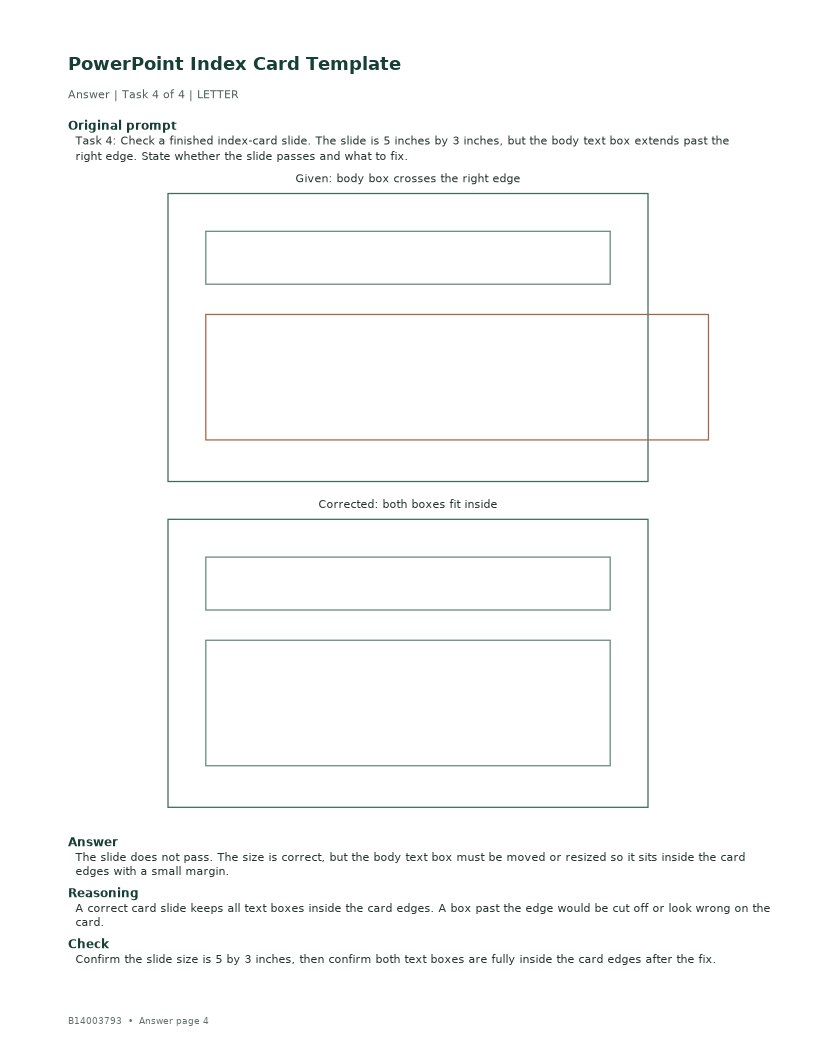
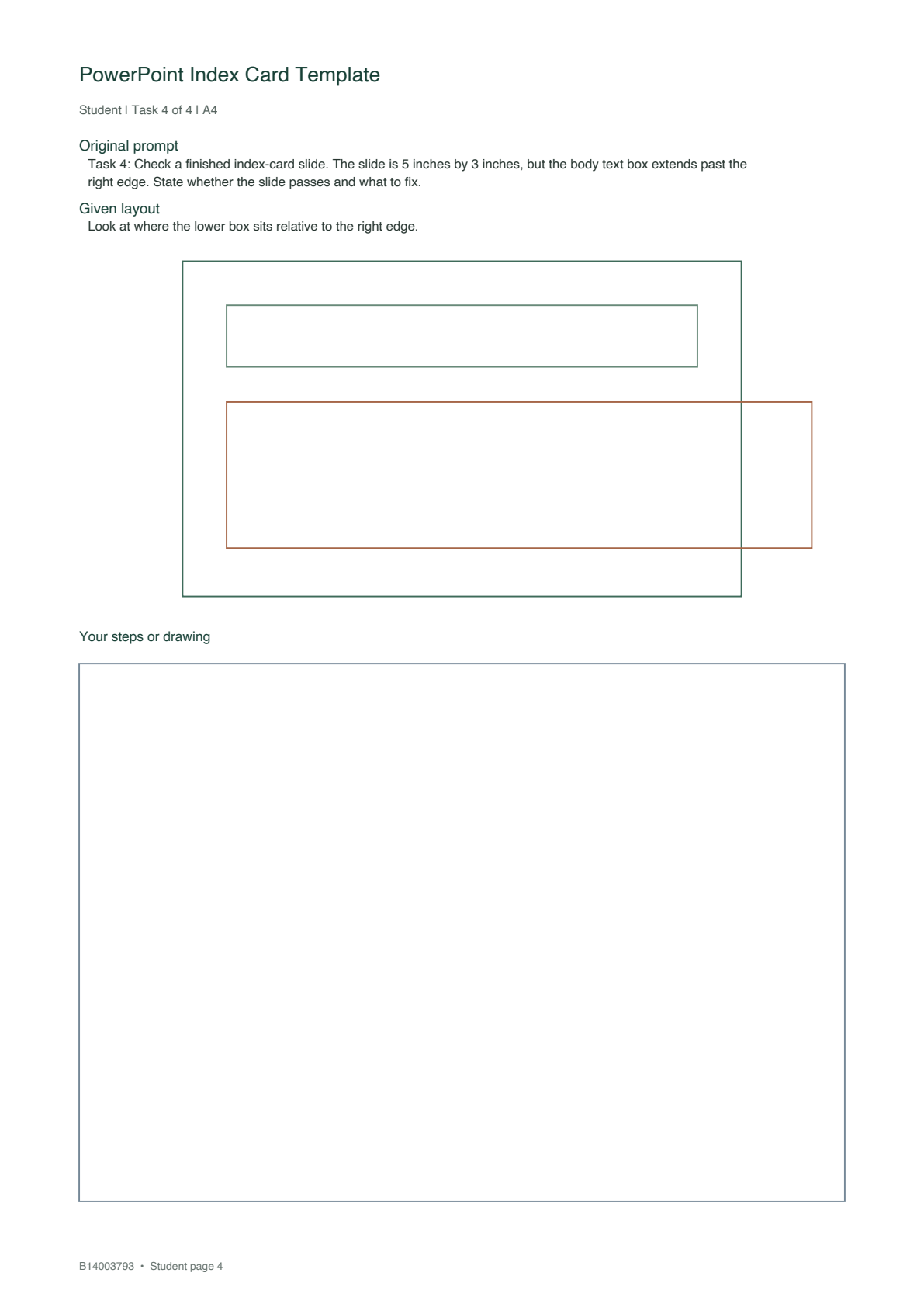
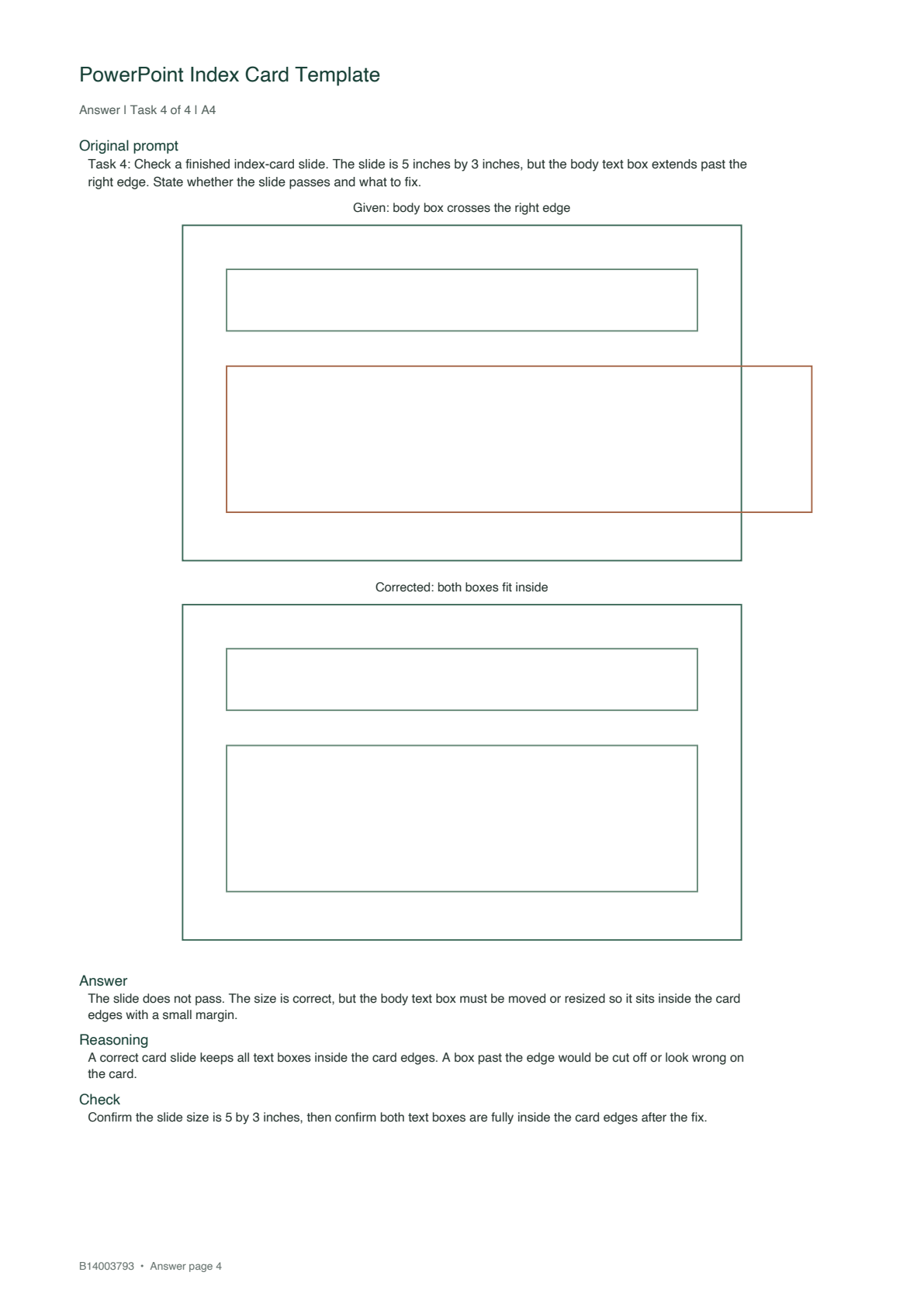
Task 4: Check a finished index-card slide. The slide is 5 inches by 3 inches, but the body text box extends past the right edge. State whether the slide passes and what to fix.
Show answer 4
The slide does not pass. The size is correct, but the body text box must be moved or resized so it sits inside the card edges with a small margin.
A correct card slide keeps all text boxes inside the card edges. A box past the edge would be cut off or look wrong on the card.
Check: Confirm the slide size is 5 by 3 inches, then confirm both text boxes are fully inside the card edges after the fix.
Useful checks
- Drawing a small card shape on a standard widescreen slide instead of setting the slide size. Set the slide page itself to the card dimensions: use Design > Slide Size > Custom Slide Size on Windows, or File > Page Setup > Custom under Size on Mac.
- Placing text boxes so they touch or cross the card edges. Keep a small margin inside the card edges and resize or move the boxes until they fit.
- Converting the text to an image so it cannot be edited. Keep the text in editable text boxes so the template stays editable.
Questions about this resource
Can I use portrait instead of landscape?
Yes. Choose portrait and set width to 3 inches and height to 5 inches, then place the boxes inside the card edges.
Do I need to measure a real card?
No. Use a real 3x5 card or a clear picture to confirm the shape; the slide size is set from the known 3x5 card size.