Free original resources
Free Printable Circle Templates: True-Size Layout by Diameter and Count
Plan true-size circle templates by diameter and count. Learn grid layout, spacing, paper-fit checks, and a simple worked example for accurate cutting.
Free resources
Letter & A4
PDF & SVG
Letter & A4
PDF & SVG
Make it yours.
Free · no signup · calculated in your browser
Your free printable kit.
Original reference, student practice and separate worked answers. No account or payment.
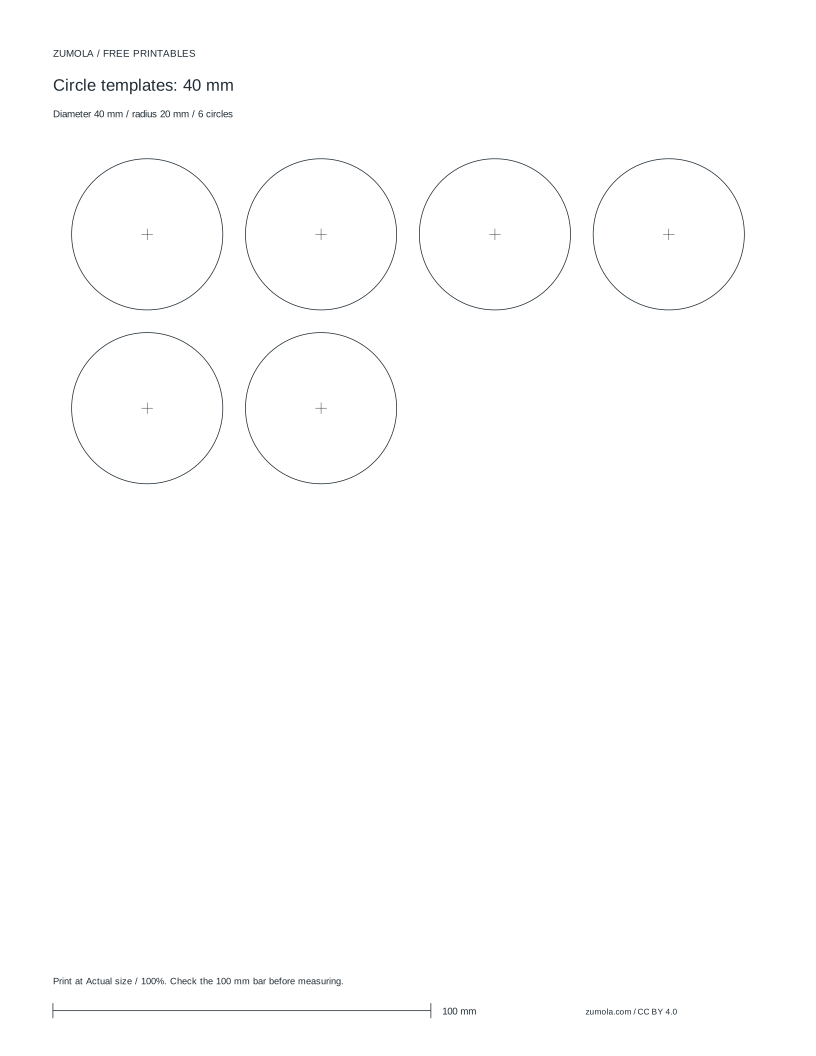
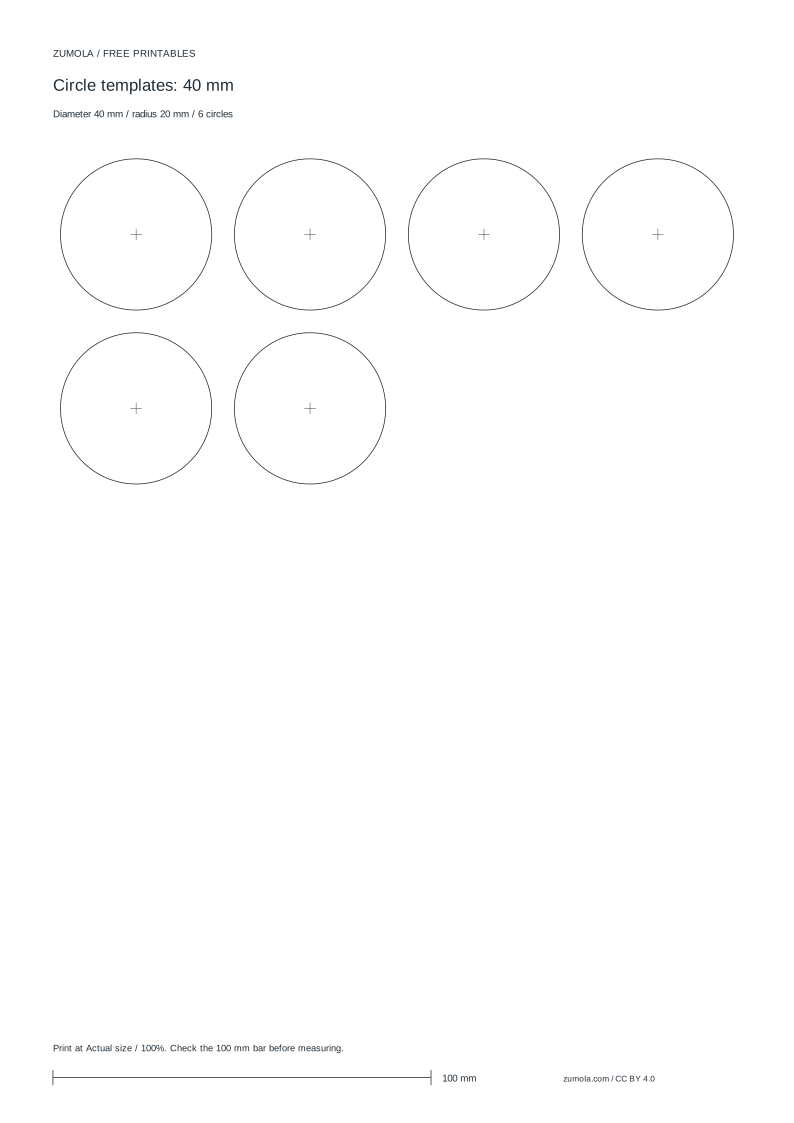
Practice worksheet
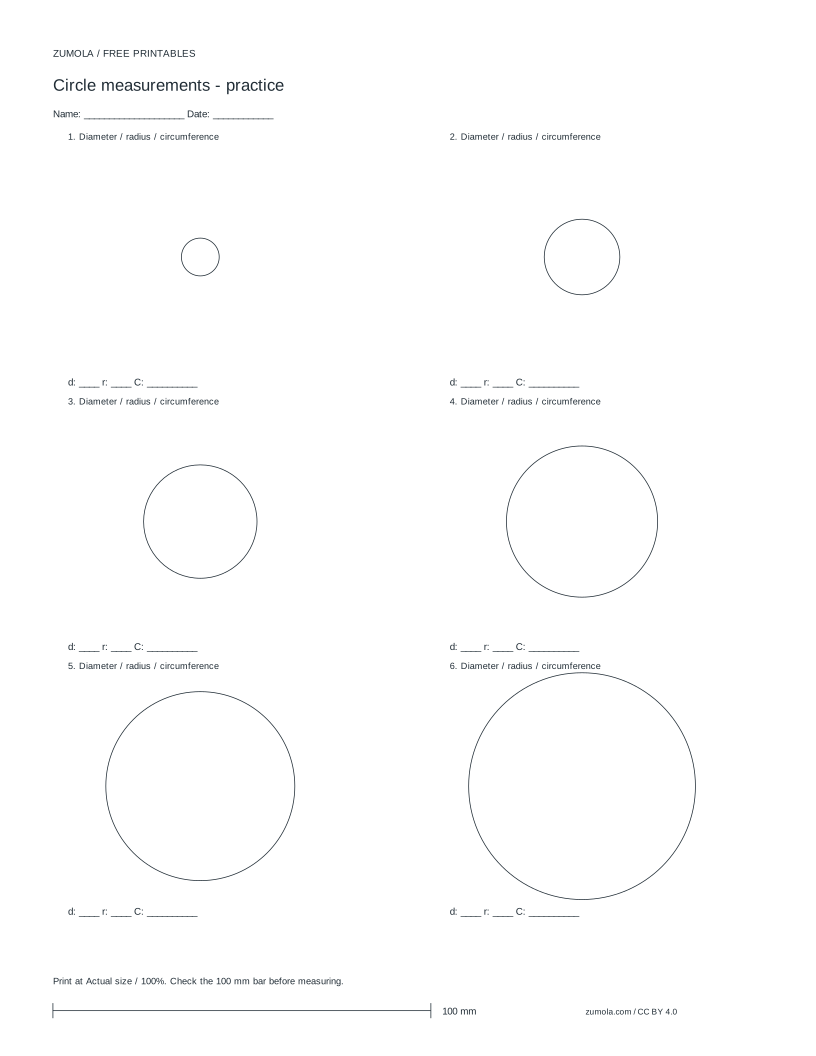
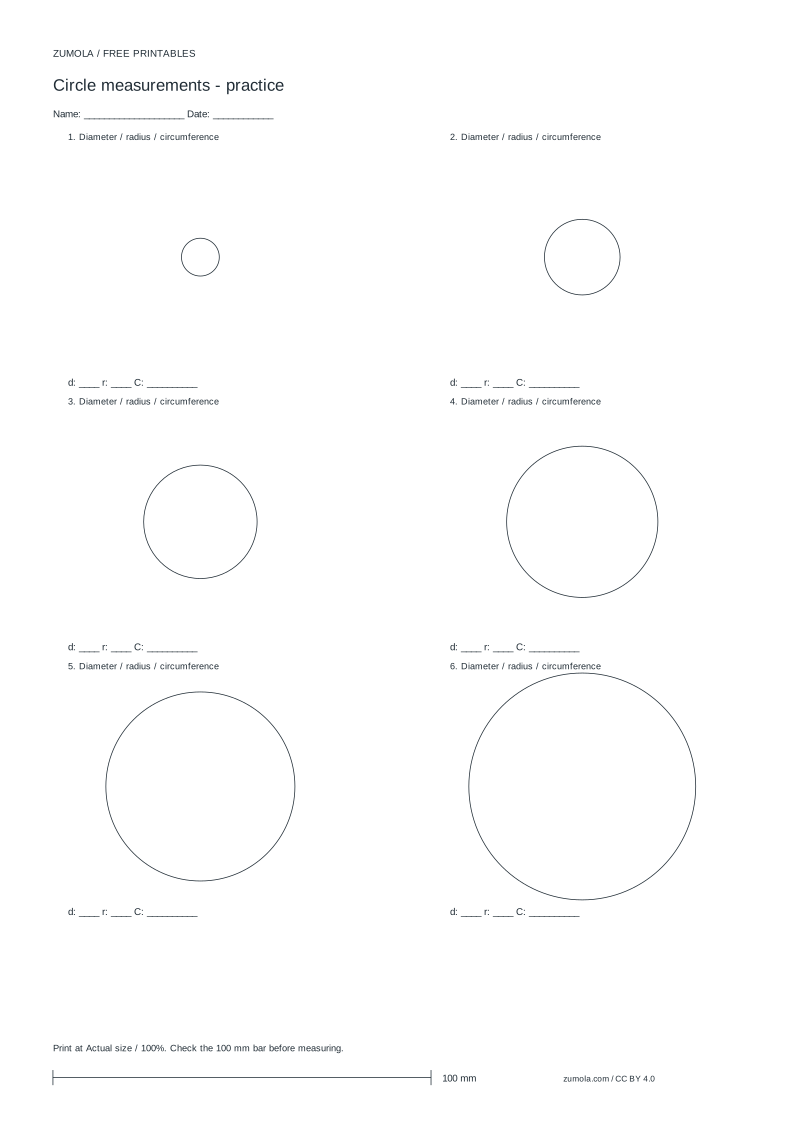
Worked answers / rubric
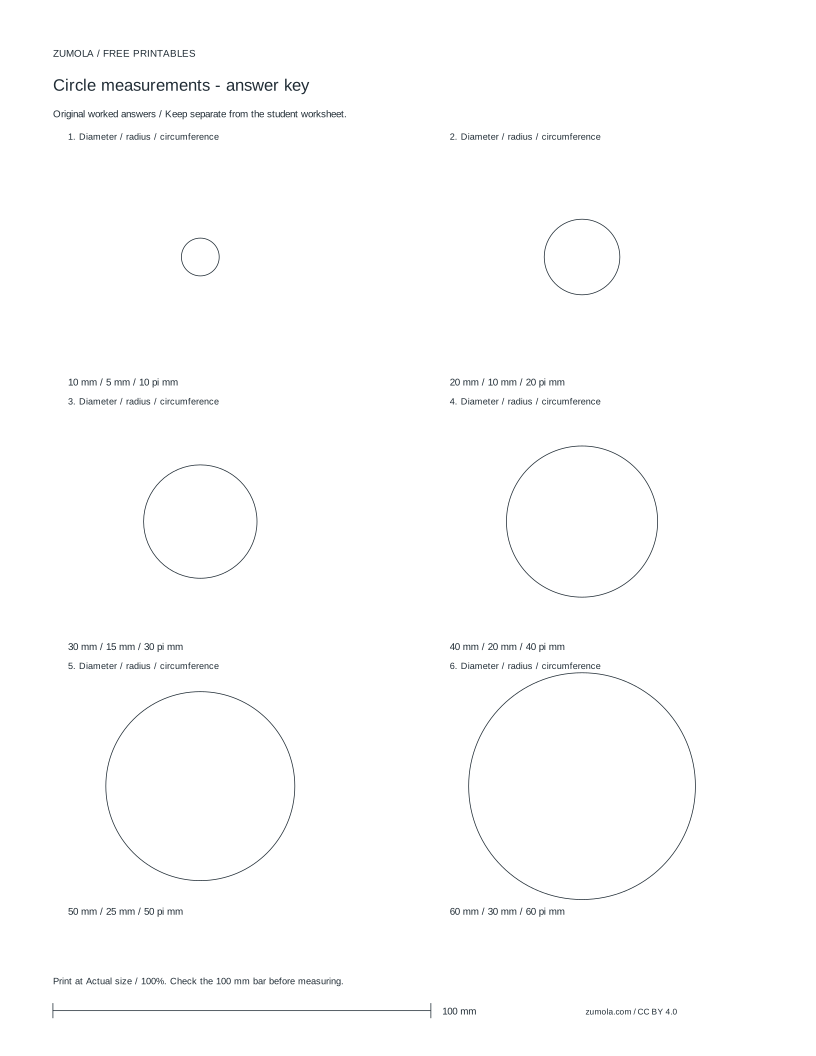
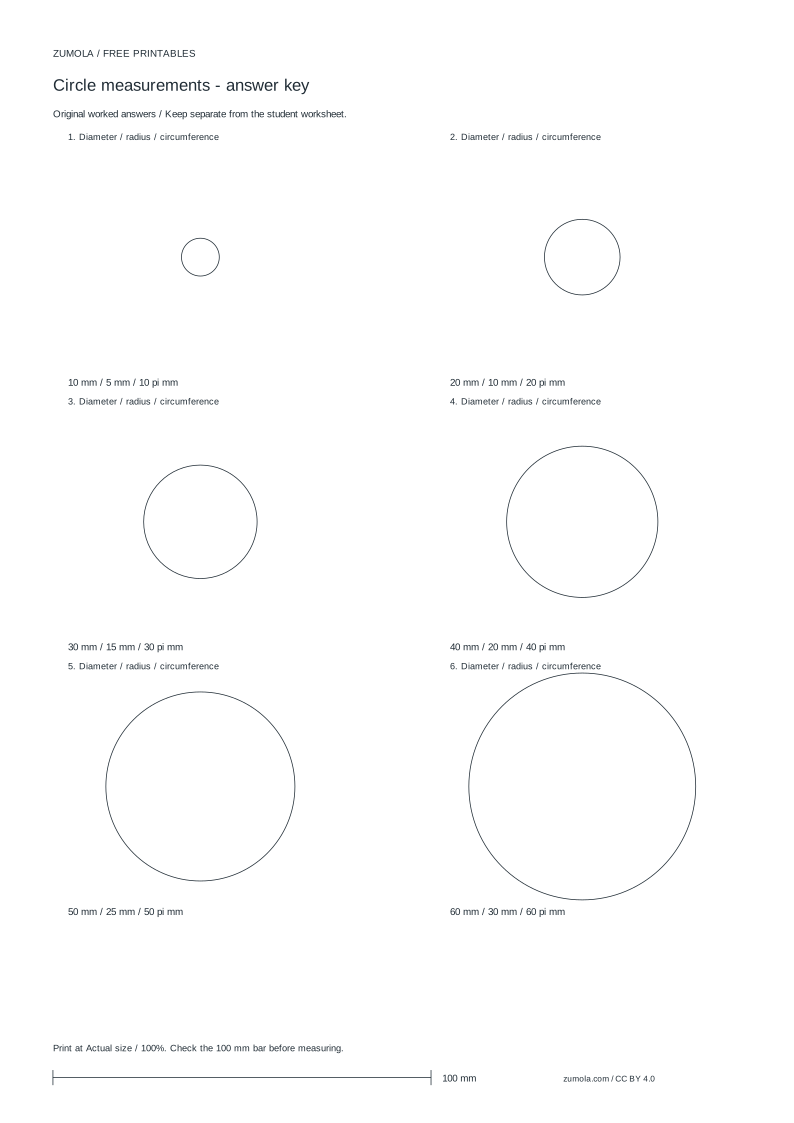
Print at Actual size / 100%. Check the calibration bar before using physical dimensions.
This page explains how to lay out true-size circles from a chosen diameter and count. The method places circles on a rectangular grid, checks that the grid fits the paper, and keeps spacing consistent so cut lines do not overlap. It is for craft, drawing, and model-making tasks where the printed circle must match a stated diameter. The layout is a planning method; any print or download controls appear separately. Use millimetres unless you deliberately convert, and verify a calibration bar before printing at 100%.
Grid layout from diameter and count
Start with the finished circle diameter D in millimetres. Each circle occupies a square cell of side D, because the bounding box of a circle is D by D. If you want a gap g between neighbouring circles, the cell side becomes D + g. The grid has columns c and rows r, and capacity is c times r. Choose c and r so capacity is at least the requested count n. A common choice is c equal to the ceiling of the square root of n, then r equal to the ceiling of n divided by c. This keeps the grid compact without splitting a circle across a cell boundary.
Place the grid inside the paper's printable area. Let the paper width be W and height H, with left margin m and top margin t. The grid width is c times the cell side, and the grid height is r times the cell side. The grid fits only if grid width is at most W minus twice m and grid height is at most H minus twice t. If it does not fit, reduce the count per row, reduce the diameter, or use a larger sheet. Do not shrink the printed diameter to force a fit unless the task allows a different finished size.
- Record diameter D and count n in millimetres.
- Choose a gap g of zero or more millimetres; cell side s = D + g.
- Set columns c and rows r so c times r is at least n.
- Check c times s against available width and r times s against available height.
- Place circle centres at half-cell offsets so each circle sits inside its cell.
Spacing, margins, and paper-fit checks
A zero gap means circles touch at their bounding squares, not at the circle edges. The circles themselves still have open space at the corners of each cell. If you need a visible cutting gap, set g to the desired clearance and keep it constant in both directions. Margins protect the layout from being clipped by the printer's non-printable edge. Use the same margin on left and right, and the same margin on top and bottom, unless the task explicitly needs an asymmetric layout.
Check the fit before printing. Multiply the number of columns by the cell side and add the left and right margins. That total must not exceed the paper width. Do the same for rows and height. If the total equals the paper size exactly, any printer edge variation can clip the outer circles, so leave a small safety margin. The safety margin is a layout choice, not a claim about a particular printer's tolerance.
- Compute total width = left margin + c times s + right margin.
- Compute total height = top margin + r times s + bottom margin.
- Compare each total with the paper width and height.
- If either total is too large, reduce c or r, reduce s, or choose a larger sheet.
- Keep the chosen margins and gap fixed across the whole sheet.
Worked example with six 40 mm circles
Suppose D = 40 mm, n = 6, gap g = 0, so s = 40 mm. Choose c = 4 and r = 4, giving capacity 16, which is at least 6. The grid is 160 mm wide and 160 mm tall. With a left margin of about 19 mm and a top margin of 42 mm, the grid width plus left margin is about 179 mm, and the grid height plus top margin is about 202 mm. These totals fit within a common A4 printable area of 210 mm by 297 mm when the right and bottom margins are also respected. The first circle centre sits half a cell from the grid edge, so its centre is offset by 20 mm from the grid's left and top edges.
The unused cells remain empty; they do not change the diameter of the printed circles. If the task needs exactly six circles and no empty cells, choose c = 3 and r = 2, giving capacity 6. That grid is 120 mm by 80 mm, which is more compact but changes the arrangement. Both layouts are valid if the paper-fit check passes. The choice depends on whether you want a compact block or room for notes around the circles.
- Set D = 40 mm and n = 6.
- Try c = 4, r = 4: capacity 16, grid 160 mm by 160 mm.
- Check margins: left about 19 mm, top 42 mm, and keep right and bottom margins positive.
- Alternatively try c = 3, r = 2: capacity 6, grid 120 mm by 80 mm.
- Confirm the chosen grid fits the paper before printing at 100%.
Cutting, folding, and assembly cautions
For flat circle templates, cut on the printed outline and keep the scissors or blade perpendicular to the paper. A closed contour matters: the start and end of the cut should meet without a gap or overlap. If you are making a cone, cylinder, or rectangular box, the circle is only one part of a net. Use the correct development formula for that solid rather than treating every circle as a flat template. For a cone, the sector radius equals the slant height, and the arc length equals the base circumference. For a cylinder, the rectangle width equals the circumference of the circular base. For a rectangular box, the net is made of rectangles, not circles.
Do not force a net onto a sheet if its unfolded dimensions exceed the paper. Reject the size and choose a smaller model or a larger sheet. Paste tabs need extra width beyond the net outline; include them in the paper-fit check. Keep construction lines separate from cut lines so folds are not confused with cuts. These are geometric planning rules, not medical or anatomical guidance.
- Cut the closed circle contour and check that the ends meet.
- For a cone, compute sector radius from slant height and arc length from base circumference.
- For a cylinder, compute rectangle width from base circumference.
- Add paste-tab width to the net's outer dimensions before checking paper fit.
- Reject any net whose unfolded size exceeds the available paper area.
Try this example
Lay out six circles of 40 mm diameter with no gap on a grid of four columns and four rows. State the grid size and whether a left margin of 19 mm and top margin of 42 mm can fit on a 210 mm by 297 mm sheet with positive right and bottom margins.
Show the worked explanation
Cell side is 40 mm. Grid width is 4 times 40 = 160 mm; grid height is 4 times 40 = 160 mm. With left margin 19 mm, width used is 160 + 19 = 179 mm, leaving 210 - 179 = 31 mm for the right margin, which is positive. With top margin 42 mm, height used is 160 + 42 = 202 mm, leaving 297 - 202 = 95 mm for the bottom margin, which is positive. The layout fits, and capacity is 16, so six circles can be placed with empty cells remaining.
Common mistakes
- Treating the diameter as the cell side without allowing for a gap, then wondering why neighbouring circles touch. Set cell side to diameter plus the intended gap, and keep that gap constant in both directions.
- Checking only the grid size and forgetting the margins, so the outer circles are clipped. Add left and right margins to the grid width, and top and bottom margins to the grid height, before comparing with the paper size.
- Using a circle template as if it were a complete net for a cone or cylinder. Use the correct development formula for the solid, and include paste tabs in the paper-fit check.
Check your work
- The stated diameter and count are used consistently in the layout calculation.
- Cell side equals diameter plus any chosen gap, and the gap is applied in both directions.
- Grid width and height are checked against paper size after adding all four margins.
- Circle centres are placed at half-cell offsets so each circle stays inside its cell.
- Any cone, cylinder, or box net uses the correct development formula and includes paste tabs in the fit check.
- The final layout is rejected if the unfolded dimensions exceed the available paper area.
Questions before you start
How do I choose columns and rows for a given number of circles?
Pick columns c and rows r so c times r is at least the count. A compact starting point is c equal to the ceiling of the square root of the count, then r equal to the ceiling of the count divided by c. Then check that the grid plus margins fits the paper.
Can I print circles at a different size to make them fit?
Only if the task allows a different finished diameter. Otherwise reduce the count per row, reduce the gap, or use a larger sheet. Changing the diameter changes the physical template.
Why does a cone net need a sector rather than a circle?
A cone's lateral surface unfolds to a sector whose radius is the slant height and whose arc length equals the base circumference. A full circle would not match those dimensions.