Free original resources
Pixel Art Grid Generator: Draw Original Pixel Art with Coordinates
Draw original pixel art on a browser grid, then get a colour list and row/column coordinates for every filled cell. Includes method, pitfalls, and a rubric.
Free resources
Letter & A4
PDF & SVG
Letter & A4
PDF & SVG
Make it yours.
Free · no signup · calculated in your browser
Your free printable kit.
Original reference, student practice and separate worked answers. No account or payment.
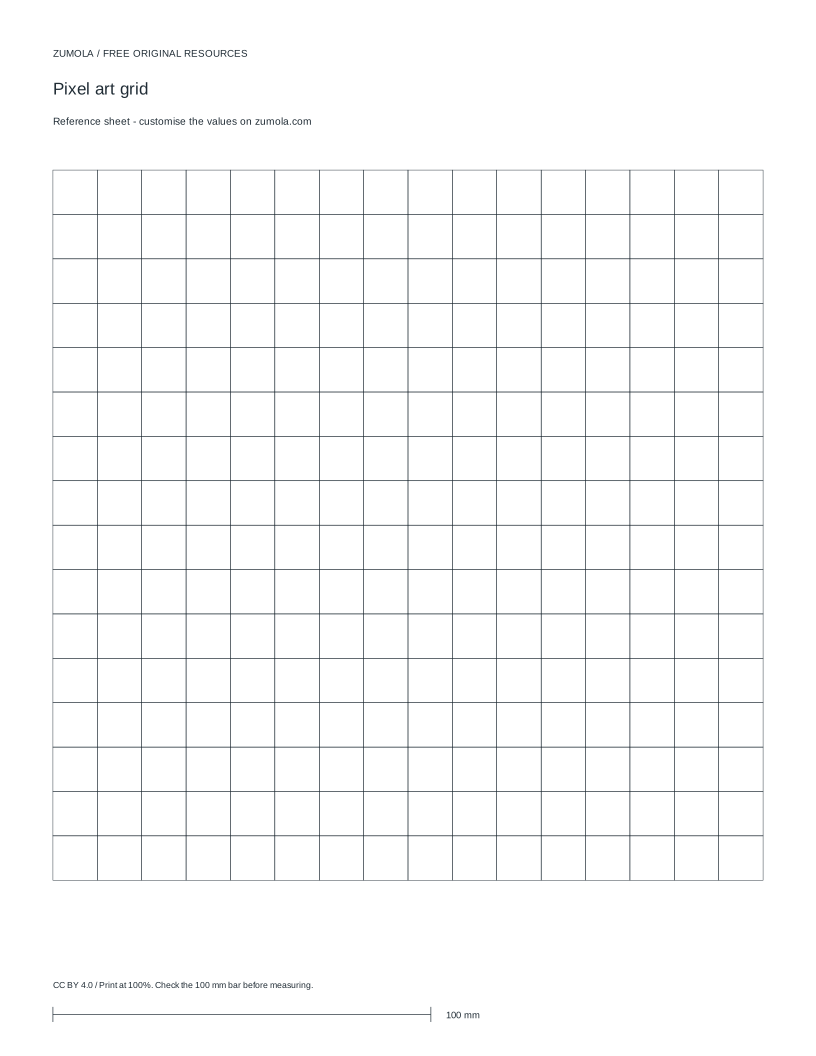
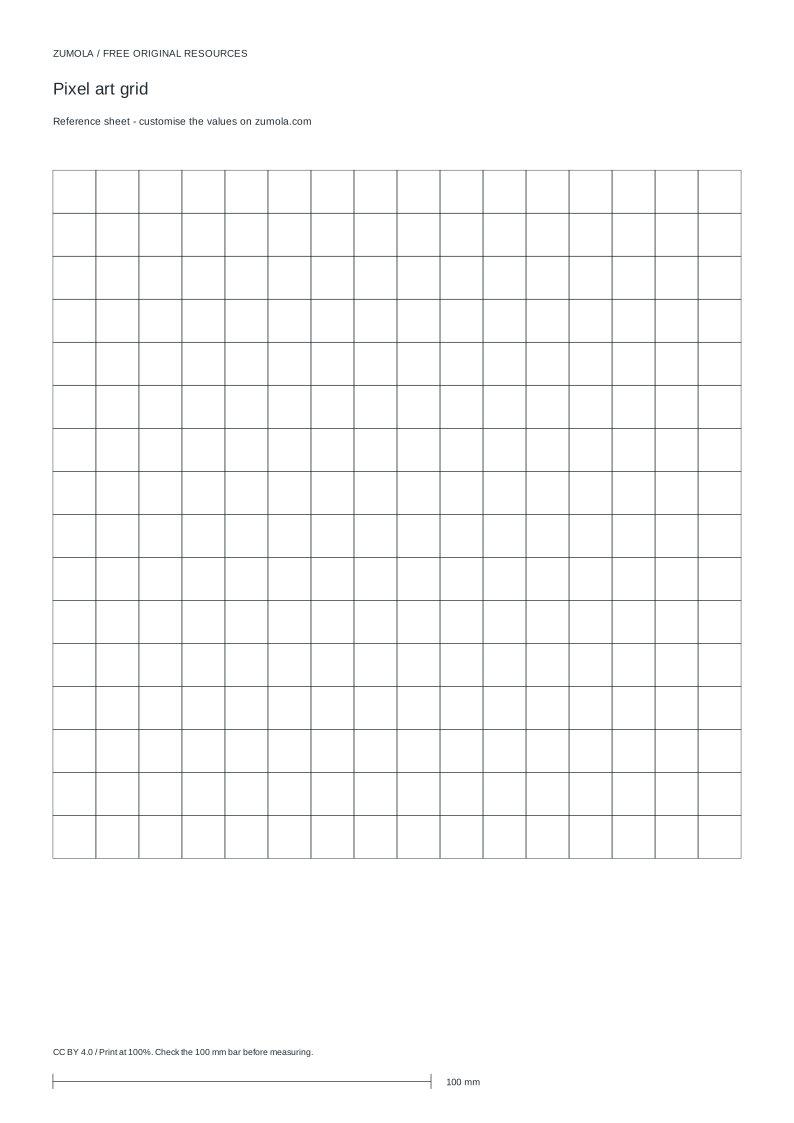
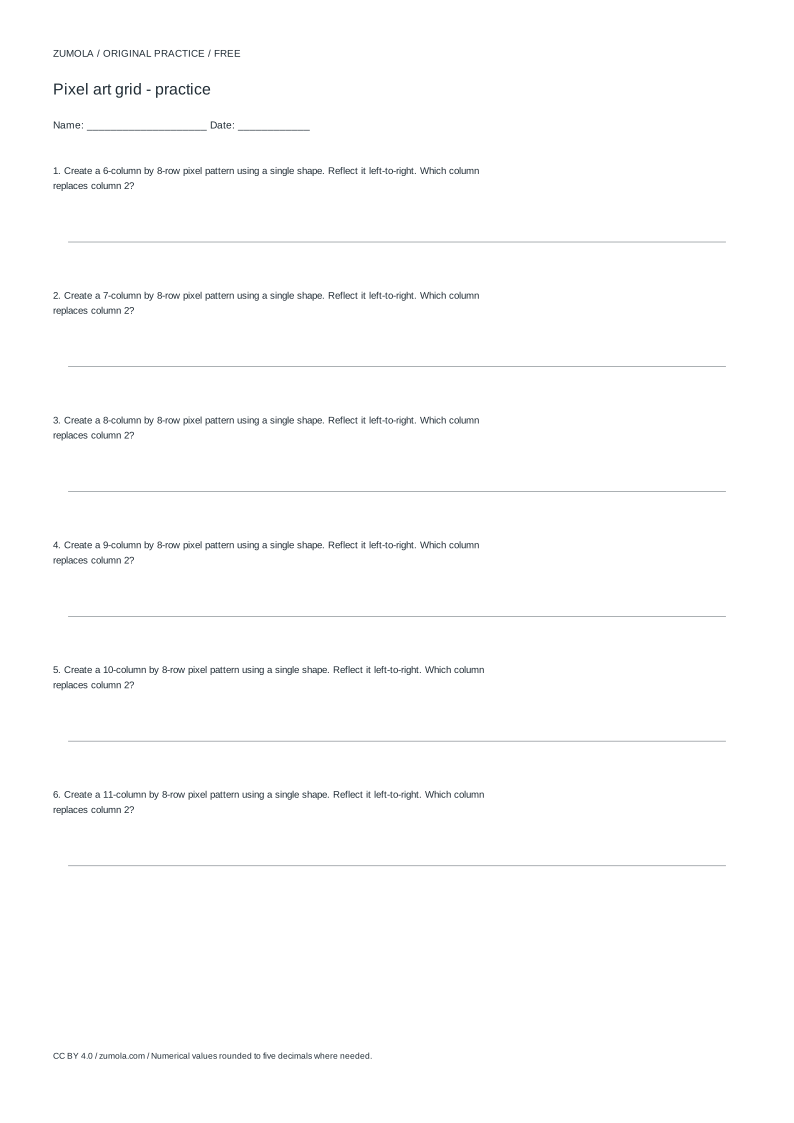
Practice worksheet

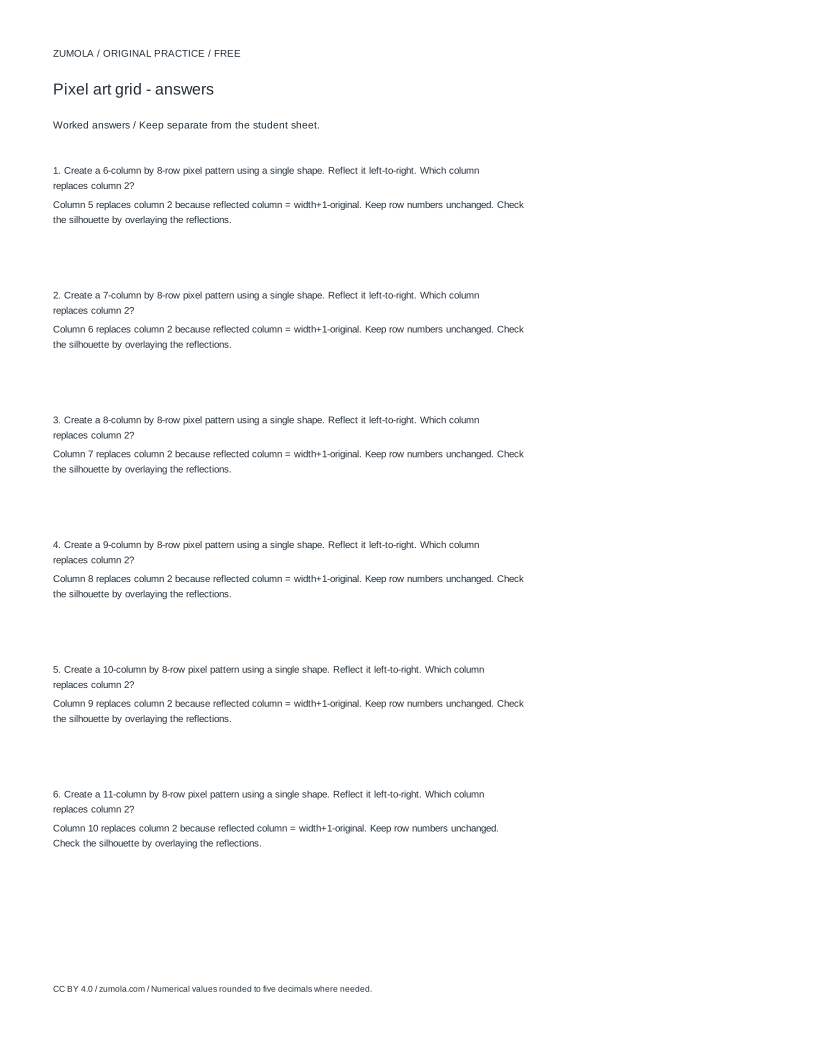
Worked answers / rubric
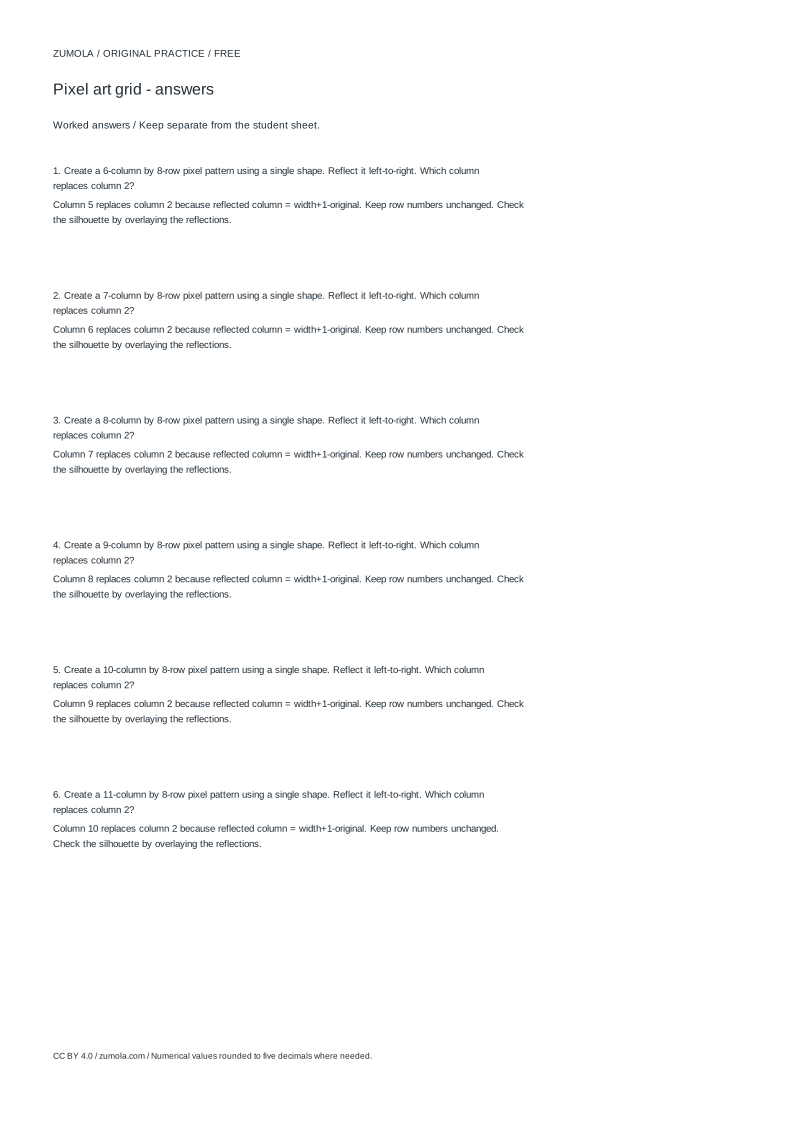
Print at Actual size / 100%. Check the calibration bar before using physical dimensions.
A pixel art grid generator turns a blank grid into a coordinate-aware drawing surface. You choose a grid size, fill cells with colours, and the tool reports each filled cell by row and column plus a palette summary. This page explains the underlying method so you can plan a design, read the output correctly, and avoid common coordinate and palette mistakes. The grid is abstract: rows and columns are counted in cells, not millimetres, unless a physical sheet is printed and checked against a calibration bar.
How the grid and coordinates work
A pixel art grid is a matrix of cells. With 16 columns and 16 rows, there are 256 cells. Each cell has a unique address: column index and row index. Decide a convention before drawing: for example, columns count left to right starting at 1, rows count top to bottom starting at 1. The top-left cell is then (column 1, row 1). Consistency matters more than which convention you pick, because the output list must match what you see.
Colour is stored per cell. A palette is the set of distinct colours used. The generator can summarise the palette and count how many cells use each colour. That summary is useful for checking balance: a design with one dominant colour and two accents reads differently from one with five equal colours. Coordinates let you reproduce the drawing elsewhere, such as on graph paper, by filling the listed cells.
- Choose the number of columns and rows; the example uses 16 by 16.
- Fix a coordinate convention: columns left to right, rows top to bottom, both starting at 1.
- Fill cells with colours, keeping the palette small and intentional.
- Read the output list: each entry gives a colour and its column and row.
- Check that every filled cell appears once and that empty cells are absent.
Planning a readable pixel design
Pixel art succeeds through contrast and silhouette. At small sizes, a shape must be recognisable from its outline alone. Test this by imagining the design in one colour: if the silhouette is unclear, adding colour will not fix it. Use the grid to keep edges deliberate; a single stray cell can change a curve into a notch.
Palette discipline helps. Choose a base colour, a shadow, and a highlight, then add accents only where they carry meaning. Because the generator reports colour counts, you can spot a palette that is too fragmented. A 16 by 16 design with eight colours often looks noisy; three to five colours usually read more clearly. These are guidelines, not rules, and multiple valid outcomes exist.
- Sketch the silhouette first using one colour.
- Add a second colour for shadow or depth, then a third for highlight.
- Check symmetry or intentional asymmetry by comparing column positions.
- Review the palette summary and merge near-duplicate colours.
- Confirm the coordinate list matches the visible drawing.
From screen grid to physical graph paper
If you print a grid sheet, print at 100% and check a calibration bar before trusting cell sizes. A calibration bar is a printed length you measure with a ruler; if it does not match the stated length, adjust scaling and reprint. Only after that check should you treat printed cells as uniform. The coordinate list transfers directly: fill the cell at column c, row r with the listed colour.
Do not confuse the drawing grid with anatomical or engineering diagrams. Pixel art is a stylised construction with its own rules; it is not a clinical anatomy reference. Likewise, coordinate units are abstract cell indices, not millimetres, unless a physical sheet has been calibrated.
- Print the grid sheet at 100% and measure the calibration bar.
- If the bar is off, correct scaling and reprint before drawing.
- Use the coordinate list to fill cells on paper, one colour at a time.
- Compare the finished sheet with the on-screen palette summary.
Try this example
On a 16 by 16 grid with columns left to right and rows top to bottom, both starting at 1, place a 3-cell horizontal line of colour A at row 4, columns 5 to 7, and a single cell of colour B at column 6, row 5.
Show the worked explanation
The output lists four filled cells: (column 5, row 4, colour A), (column 6, row 4, colour A), (column 7, row 4, colour A), and (column 6, row 5, colour B). The palette summary shows colour A used 3 times and colour B used 1 time. All other cells are empty and do not appear. Check that column 6 appears in both rows, which is correct because the addresses differ by row.
Common mistakes
- Mixing coordinate conventions, such as counting rows from the bottom while columns count from the left. State the convention once, write it beside the grid, and apply it to every entry in the output list.
- Using too many similar colours, which makes the palette summary hard to interpret. Reduce to a small set of distinct colours and merge near-duplicates before finalising the drawing.
- Trusting a printed grid without checking scale. Print at 100%, measure the calibration bar, and reprint if the measured length differs from the stated length.
Check your work
- Silhouette is recognisable when the design is viewed in a single colour.
- Palette is small and each colour has a clear role.
- Every filled cell appears exactly once in the coordinate list.
- Coordinate convention is stated and applied consistently.
- Printed sheets are checked against a calibration bar before use.
Questions before you start
What does the coordinate list contain?
Each filled cell is listed with its colour and its column and row indices, using the convention you set. Empty cells are not listed.
Can I use the grid for graph paper pixel art?
Yes. The coordinate list maps directly onto graph paper cells, provided the printed sheet has been checked against a calibration bar.
Is there one correct pixel art result?
No. Pixel art has multiple valid outcomes. Use a rubric to judge clarity, palette discipline, and coordinate accuracy rather than expecting a single answer.